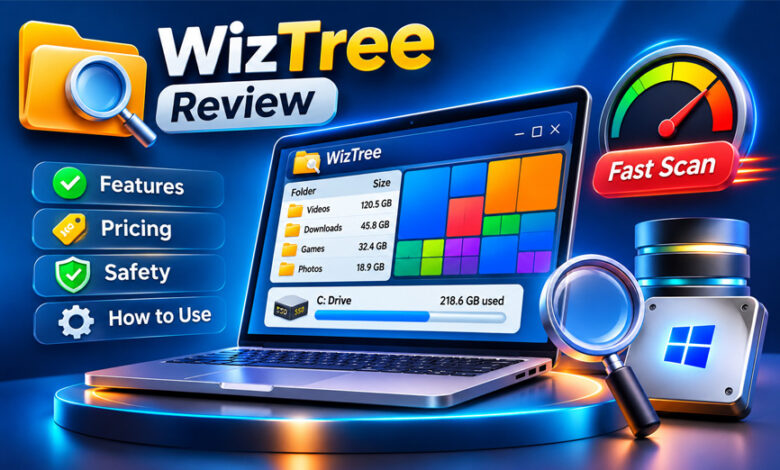

WizTree is a Windows tool that helps users find large files and folders taking up space on their computers. It scans a storage drive and shows how much space each file and folder uses. This helps users understand why their computer is running out of storage.
Many people use WizTree to find old downloads, large videos, backups, and files they no longer need. It is also known for its fast scanning and visual reports. This guide explains what WizTree is, how it works, its main features, pricing, safety, and how to use it.
What Is WizTree?
WizTree is a Windows program that shows how storage space is used on a computer. It scans a selected drive and shows which files and folders take up the most space.
When a computer runs low on storage, finding large files can take time. Videos, old backups, downloads, and unused folders can fill up a drive without users noticing.
WizTree makes this task easier. It creates a list of files and folders and sorts them by size. This helps users find large files without opening every folder one by one.
One of its main features is the treemap chart. It shows files as blocks of different sizes. Large blocks represent files that use more storage, while small blocks represent smaller files.
WizTree is mainly a disk space analysis tool. It helps users find files that use storage, but users must decide which files they want to keep or delete.
It can be useful for home users, developers, IT workers, and anyone who wants to manage storage on a Windows computer.
How Does WizTree Work?
WizTree scans a selected drive and collects information about its files and folders. It then shows the results in a file list and a visual chart.
One reason WizTree is fast is the way it reads storage information from NTFS drives.
Master File Table (MFT)
Most Windows computers use a file system called NTFS. It stores information about files and folders in a special system file called the Master File Table (MFT).
The MFT contains details about files, including their names, locations, and sizes. WizTree reads this information directly instead of checking every folder separately.
This method helps the program collect file information much faster.
File Information and Sorting
After scanning the drive, WizTree arranges the results in a simple list.
Users can sort files and folders by:
- File size.
- Percentage of total storage.
- Number of files.
- Last modified date.
These options help users find large files and folders quickly.
Treemap Visualization
WizTree also shows the scan results in a treemap chart. Each rectangle represents a file. Larger files appear as larger rectangles.
Different colors represent different file types. This makes it easier to spot videos, documents, programs, and other files.
Users can click or hover over the blocks to explore the files and see more details.
Main Features of WizTree
WizTree has several useful features for checking storage and finding large files. Its main tools focus on fast scanning, file details, and visual reports.
Fast Disk Scanning
Fast scanning is one of the main features of WizTree. On NTFS drives, it reads the Master File Table directly to collect file information.
This means it does not need to check every folder separately. As a result, it can scan large drives in a short time.
One user reported scanning a 1 TB hard drive in about 11 seconds. However, this was one test, and the speed may be different on other computers.
The scanning time depends on the drive, computer hardware, file system, and number of files.
File and Folder Size Analysis
WizTree shows a detailed list of files and folders based on their size.
Users can quickly find which folders contain the largest files. They can also see how much space each item uses on the drive.
This feature is helpful when a computer runs low on storage. Instead of checking folders manually, users can use WizTree to find the main files taking up space.
Treemap Visualization
The treemap chart is one of the most useful parts of WizTree.
It shows files as blocks of different sizes. Large files have large blocks, while small files have smaller blocks.
Different colors help users understand which types of files are using storage. For example, users can spot large videos, documents, and backup files.
Users can click on a block to explore its location. They can also move the mouse over a block to see more details.
This chart makes it easier to understand storage usage without reading long lists of files.
File Type Information
WizTree helps users see which types of files are taking up the most space.
Its color-coded chart makes it easier to find large videos, backup files, archives, and other file types.
This information helps users understand where most of their storage is going and which files may need attention.
File Management Options
WizTree also provides some basic options for managing files.
Users can right-click a file or folder to find options such as:
- Open its location in Windows Explorer.
- Copy the file path.
- Delete selected files.
These options make it easier to manage files after finding them.
However, users should always check a file before deleting it. Some large files may belong to Windows or installed programs. Removing them without knowing their purpose can cause problems.
How to Download and Install WizTree
You can download WizTree from its official website at DiskAnalyzer.com.
The website provides the software and its available download options. It is better to download WizTree from the official source instead of unknown websites.
WizTree offers two main download options: an installer and a portable version. The installer adds the program to your computer, while the portable version can run without a normal installation.
Downloading WizTree
Visit the official website and find the latest WizTree download.
Choose the version you want to use. Make sure you are downloading the Windows version from the correct website.
Installing WizTree
If you download the installer, open the file and follow the instructions on your screen.
After the installation is complete, open WizTree from your computer.
If you choose the portable version, extract the downloaded files if needed and run the program.
Launching the Software
When WizTree opens, you will see a list of available storage drives.
Choose the drive you want to check and start the scan. WizTree will collect information about its files and folders and show the results.
How to Use WizTree to Find Large Files
WizTree is simple to use. You do not need advanced computer skills to scan a drive and find large files.
Step 1: Select a Drive
Open WizTree and choose the drive you want to check from the dropdown menu.
For example, you can select the C: drive to check your main Windows storage. You can also choose another drive if you want to check a separate disk.
Step 2: Start the Scan
Click the Scan button to begin.
WizTree will check the selected drive and collect information about its files and folders. On supported NTFS drives, it uses the MFT method to scan faster.
Wait until the scan is complete.
Step 3: Check the File List
Look at the file and folder list in the upper part of the program.
You can sort the results by size to find the largest files. Check their names and locations to understand what is using your storage.
Step 4: Explore the Treemap
Now look at the treemap chart in the lower part of the program.
Large blocks show files that use more space. Click on a block to explore its location and folder details.
The different colors also help you identify which types of files are taking up storage.
Step 5: Review and Manage Files
After finding large files, check whether you still need them.
For example, old downloads, backup copies, and personal videos may be safe to remove if you no longer need them.
You can right-click an item to open its location in Windows Explorer or copy its path.
Always check a file before deleting it. Do not remove unfamiliar system files or files used by installed programs. If you are unsure about a file, leave it until you know what it does.
WizTree helps you find large files, but you must decide which ones are safe to remove.
Why Is WizTree So Fast?
WizTree is known for its fast scanning speed. One main reason is that it can read the Master File Table (MFT) directly on NTFS drives.
The MFT already contains information about files and folders. WizTree uses this information to create a storage report without checking every folder separately.
WizTree also uses computer memory (RAM) to store the information it collects. This helps users sort files, explore folders, and view the treemap quickly.
Many other disk tools use normal Windows file system methods to collect information. These methods can take more time because they check files through standard system processes.
However, scanning speed can change depending on the drive, file system, and computer hardware.
Is WizTree Free?
Yes, WizTree is free for personal use. People can download and use it on their personal computers without paying.
However, the free version has some limits. Businesses and other commercial users may need to buy a suitable license.
WizTree also offers licensing options for businesses and software distributors. The price depends on how the software will be used.
Before using WizTree at work, check the license rules on its official website.
WizTree Pricing and License Types
WizTree offers different license options for personal users, businesses, and people who want to share or distribute the software.
Personal License
WizTree is free for personal, non-commercial use. This option is suitable for people who want to check storage on their home computers.
Users can scan drives, find large files, and view storage reports without buying a personal license.
However, this free option is not meant for general business use.
Business License
Businesses may need to buy a Supporter Code or a business-site license.
The price may depend on the number of employees and the size of the business. One article reported that business licenses started at around $25 for an individual or a very small organization.
This is a reported price and may have changed. Businesses should check the official website for current prices and license rules.
Distribution License
WizTree also offers a Distribution License for people or companies that want to include the software in another program or share it with other users.
This license is different from a normal personal or business license. It is made for software distribution.
Anyone planning to distribute WizTree should contact the developer and check the current rules.
License Updates
The available information says that some WizTree licenses cover the version year in which they were purchased. Users may need to renew their license to receive later updates.
The exact update and renewal rules should be checked on the official website before buying.
Is WizTree Safe to Use?
WizTree is a tool that shows which files and folders are using storage space on a computer.
It can help users find old downloads, large files, and backups they no longer need. However, care is needed when using its delete option.
Some large files are important for Windows or installed programs. Deleting them without knowing what they do can cause software or system problems.
Follow these simple safety tips:
- Download WizTree from its official website.
- Check a file before deleting it.
- Avoid deleting unknown Windows system files.
- Keep backups of important documents.
- Check folders before removing their contents.
- Do not delete files just because they are large.
WizTree can show which files use the most space, but it cannot decide which files are safe to remove.
Benefits of WizTree
WizTree has several useful benefits for people who want to manage computer storage.
Its main benefits include:
- Fast scanning: It can scan NTFS drives quickly by reading the Master File Table.
- Easy file checking: Users can find large files without opening every folder.
- Visual reports: The treemap shows how storage space is being used.
- File sorting: Users can sort files by size and other details.
- Easy navigation: It helps users explore folders and find files.
- Portable version: Users can run the portable version without a normal installation.
- Free personal use: Home users can use the software without paying.
These features make WizTree useful for finding large files and understanding storage problems.
Limitations of WizTree
WizTree also has some limitations that users should know about.
First, it is mainly made for Windows computers. People using macOS or Linux will need another disk analysis tool.
Its fastest scanning method works with NTFS drives. Scanning speed and methods may be different on other file systems.
Business users may also need a paid license. The free version is not suitable for every type of use.
Another limitation is that WizTree does not know which files are unnecessary. Users must check the results and decide what they can safely delete.
It is also not a complete computer cleaning tool. Its main purpose is to show disk space usage, not to manage every part of computer maintenance.
WizTree vs Other Disk Space Analyzers
WizTree is not the only tool for checking computer storage. Other programs, such as WinDirStat and TreeSize, offer similar features.
Each tool has its own features and scanning methods.
WizTree vs WinDirStat
WinDirStat is another Windows tool that helps users check disk space. It scans drives and shows which files and folders use the most storage.
Like WizTree, it uses a treemap chart to show files as blocks of different sizes. This makes large files easier to find.
The main difference is scanning speed. WizTree can read the MFT directly on NTFS drives, which often makes it faster than WinDirStat.
WinDirStat may be a good choice for users who want a free visual disk analyzer and do not mind waiting longer for scans.
WizTree may be better for users who want to check large NTFS drives quickly.
WizTree vs TreeSize
TreeSize is a disk space tool that helps users check folder sizes and see how storage is being used.
It provides folder reports and different ways to explore files. Some versions also include extra file management and reporting tools.
WizTree mainly focuses on fast scanning and its treemap chart. Its direct MFT reading method can make it faster on supported NTFS drives.
TreeSize may be a better choice for people who need more storage management features, especially in business environments. The available tools depend on the version.
WizTree may be a better option for users who mainly want to find large files quickly.
Common WizTree Problems and Solutions
WizTree is easy to use, but users may sometimes face problems while scanning drives or opening files.
Here are some common problems and simple solutions.
WizTree Scan Is Slow
Sometimes WizTree may take longer than expected to scan a drive.
This can happen because of the drive type, file system, storage condition, or computer performance.
Solution: Check that you selected the correct drive and wait for the scan to finish. Also, make sure the drive is working properly. Scanning speed can be different on each computer.
Some Files Are Not Showing
You may notice that some files or folders are missing from the scan results.
This can happen because of access limits, file permissions, or the way the drive is scanned.
Solution: Check that you selected the correct drive. You can also try opening WizTree with administrator permission and scanning again.
WizTree Cannot Scan a Drive
WizTree may fail to scan a drive because of permission problems, file system errors, or storage issues.
Solution: Check whether Windows can open the drive. Make sure it is connected and working. You can also try running WizTree as an administrator.
Accidentally Deleted a File
WizTree allows users to delete files, but removing the wrong file can cause problems.
Solution: First, check the Windows Recycle Bin. If the file is there, you may be able to restore it. If it is not there, check whether you have another backup.
Always check files carefully before deleting them.
Who Should Use WizTree?
WizTree can help different types of Windows users.
Home users can use it to find large downloads, old videos, backups, and other files taking up space.
Developers may find it useful when checking projects with large files, temporary data, and many folders.
IT workers can use it to check storage on computers and find folders that need attention.
Businesses may also find it useful, but they should have the correct commercial license.
Overall, WizTree is useful for anyone who wants to find out why a Windows computer is running low on storage.
Best Practices for Using WizTree
A few simple steps can help you use WizTree more safely and get better results.
- Choose the correct drive before starting a scan.
- Sort files by size to find large items.
- Use the treemap to spot files taking up more space.
- Check file locations before deleting anything.
- Avoid removing unknown system files.
- Keep backups of important files.
- Download the latest version from the official website.
- Check the license rules before using it for business.
These steps can help you manage storage without removing important files by mistake.
Bottom Line
WizTree is a Windows tool that helps users find large files and folders taking up storage space. Its main advantage is its fast scanning method, which reads the Master File Table directly on NTFS drives.
It also offers a treemap chart, file sorting, and basic file management options. These features make it easier to understand how storage is being used.
WizTree is free for personal use, while businesses may need a paid license. Users should also be careful when deleting files because some large files are important for Windows and other programs.
Overall, WizTree is a useful option for people who want a quick and simple way to check storage on a Windows computer.
Frequently Asked Questions
What is WizTree used for?
WizTree helps you find large files and folders that take up space on your computer.
Is WizTree free?
Yes, it is free for personal use. Businesses may need a paid license.
Is WizTree safe to use?
Yes, but download it from the official website and be careful when deleting files.
Does WizTree work on Windows 11?
WizTree is made for Windows. Check its official website for the latest Windows 11 support.
Why is WizTree so fast?
It reads the MFT directly on NTFS drives, which helps it scan files quickly.
Can WizTree delete files?
Yes, you can delete files with WizTree. Always check a file before removing it.
What is the difference between WizTree and WinDirStat?
Both tools show disk space usage, but WizTree is usually faster on NTFS drives.
Do businesses need to pay for WizTree?
Yes, businesses may need a paid license for commercial use.
Glorvix.com Review 2026: Services, Pricing, Reviews, and Safety
Thealitekeepsafe.com Review: Content, Trust, Privacy, and Safety