
Multipoint headphones can stay connected to two or more source devices, such as a laptop and a phone, so you can switch between them without manually reconnecting. They are most useful for people who regularly move between laptop meetings, mobile calls, and audio across different devices.
Multipoint is not the same as saving multiple pairings or playing audio from two devices at once. Below, we explain how it differs from manual reconnection, who benefits, who can skip it, and how to test a laptop-and-phone setup.
How Multipoint Keeps Two Devices Connected
A standard Bluetooth headset may remember multiple devices, but that does not mean it can stay connected to more than one at a time. It may recognize both your laptop and phone while still requiring you to disconnect from one before connecting to the other.
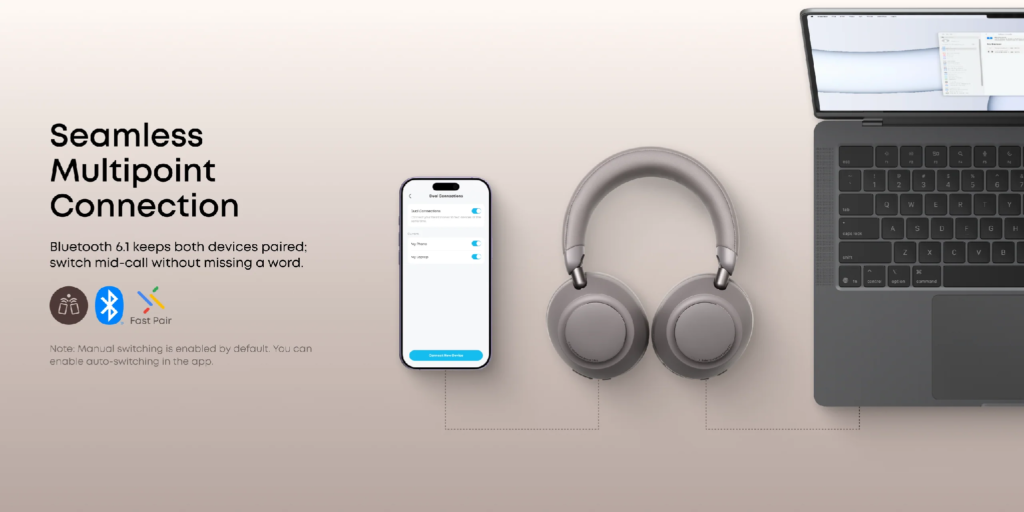
With multipoint, the headphones maintain active connections to two source devices at once. This allows you to move from a laptop meeting to a phone call without manually switching devices in the Bluetooth settings.
In practical terms, multipoint offers three advantages:
- Both devices remain connected. Your laptop and phone stay available instead of competing for a single connection.
- Switching requires fewer steps. You do not need to disconnect the headphones from one device before reconnecting them to the other.
- The headphones manage the handoff. Depending on the model and active session, an incoming call may take priority, or you may need to pause the first source before switching.
Limitation: Multipoint keeps two devices connected, but most headphones can play audio from only one device at a time. How they switch between devices varies by model and setup.
Multipoint vs. Manual Reconnection
With multipoint, your headphones can stay connected to both your laptop and phone. Without multipoint, switching relies on manual reconnection—a series of small steps that often happen at the wrong moment. If your headphones are connected to a laptop and a call arrives on your phone, the process may look like this:
- Pause the laptop audio or mute the meeting.
- Open the laptop’s Bluetooth settings and disconnect the headphones.
- Open the phone’s Bluetooth menu and select the saved headphones.
- If the phone cannot connect, put the headphones into pairing mode and try again.
- After the call, reconnect to the laptop and reselect the correct audio input and output if needed.
Each step is manageable on its own, but the full manual reconnection process can become disruptive when a client is calling or a meeting is starting. Multipoint avoids most of these steps by keeping both source devices connected.
The number of Bluetooth connections a phone or computer supports is not the same as headphone multipoint. A laptop may connect to a keyboard, mouse, and headset at the same time, but the headphones must support multipoint to remain connected to both a laptop and phone.
Who Needs Multipoint—and Who Doesn’t?
Multipoint is most useful when you want one pair of headphones to stay connected to a laptop and phone throughout the day.
You are likely to benefit if:
- You use one device for meetings or music but need to take calls on the other.
- You frequently switch the same headphones between work and personal devices.
- Manual reconnection regularly interrupts your calls or workflow.
You can probably skip it if:
- One device handles nearly all your listening, calls, and meetings.
- You switch devices only occasionally and do not mind reconnecting manually.
- You use separate headphones for your laptop and phone.
If multipoint isn’t a priority but staying aware of your surroundings is, explore the best bluetooth headphones with open-ear designs for another approach to everyday listening.
Test Your Laptop-and-Phone Setup in Two Minutes
Before relying on the headphones for an important call, run a quick test using the laptop, phone, and apps you use every day.
- Pair the laptop. Play music or join a test meeting, then confirm that the headphones work for both audio output and microphone input.
- Add the phone. Follow the manufacturer’s instructions to enable multipoint, and confirm that the laptop remains connected.
- Simulate an incoming call. Keep audio playing on the laptop and call your phone from another number. Check whether the headphones signal the call and pause the laptop audio.
- Take the call and return. Confirm that the call uses the headphones and that laptop playback resumes afterward without manual reconnection.
- Test your main apps. Repeat the process with the meeting, calling, and music apps you use most.
A successful test means the switching behavior fits your workflow—not simply that both devices display “connected.” Note whether you need to pause one source, reselect the microphone, or change any settings during the handoff.
If switching is unreliable, update the headphone firmware, operating systems, Bluetooth drivers, and apps. You can also remove old pairing records, pair both devices again, and repeat the test.
Where Space 2 Pro Fits
Anker soundcore Space 2 Pro supports both laptop meetings and phone calls in one over-ear setup. Its multipoint connectivity keeps a laptop and phone connected within the same setup, supporting workdays that involve both computer meetings and mobile calls.
For calls, the ANKER Thus™ AI Chip drives a six-microphone array with real-time voice separation. Adaptive ANC 3.0 uses an eight-microphone omnidirectional system to reduce mixed workplace noise for the listener. For music, HearID 5.0 uses audiometric calibration to create a frequency-response curve for each ear, delivered through a Hi-Res/LDAC lossless signal path. Battery life reaches up to 60 hours, or 30 hours with ANC on, with up to 20 hours of talk time on a single charge.
Conclusion
Choose multipoint based on how often you switch devices. If you regularly use the same headphones for laptop meetings and phone calls, keeping both devices connected can eliminate repeated reconnection. If most of your listening and calls happen on one device, standard Bluetooth pairing is probably enough.
Before buying, confirm that the headphones support multipoint or simultaneous connections to two source devices. Then test them with your own laptop, phone, and key apps before relying on them for important calls. Compare Bluetooth headphones based on your actual workflow, not simply the longest feature list.
Frequently Asked Questions
Is pairing headphones with a second device the same as multipoint?
No. Headphones can remember several paired devices while maintaining only one active source connection. Multipoint allows more than one source device to remain connected simultaneously, subject to the model’s connection limit.
Do all laptop-and-phone combinations switch the same way?
No. Switching behavior varies by headphone model, operating system, app, and active call or media session. Test the exact devices and apps you plan to use.
Can multipoint replace a certified workplace headset?
No. Multipoint simplifies switching between two source devices; it does not provide platform certification or enterprise device management. If your organization requires Teams, Zoom, or UC certification, a particular USB adapter, or management tools, choose a headset that meets those requirements.
How many devices can multipoint headphones connect to at once?
It depends on the model. Most consumer multipoint headphones support two simultaneous source connections, while some support more. Check the product specifications for the exact number.