Advanced SystemCare Review: How It Revived My Old Desktop Without a Hardware Upgrade

My desktop is nine years old. It has an aging hard drive, eight gigabytes of RAM, and years of installed programs, browser extensions, and leftover files that I never bothered to clean up. Over the last year, it had gotten slow enough that I genuinely considered buying a new machine. Before spending that money, I decided to test if one Windows cleaner could actually fix what felt like a hardware problem. That is how I ended up spending three weeks running Advanced SystemCare 19 on that same desktop, and this article walks through exactly what happened, screenshot by screenshot.
I want to be upfront about my background so you know where this review is coming from. I am not a professional IT technician, but I have been building, repairing, and maintaining my own PCs for over a decade. I have used several cleanup utilities in the past, some good and some that did more harm than good by deleting files they should not have touched. That history made me cautious going into this test, and it shaped how closely I paid attention to what the app actually did at each step.
First Impressions of the Dashboard
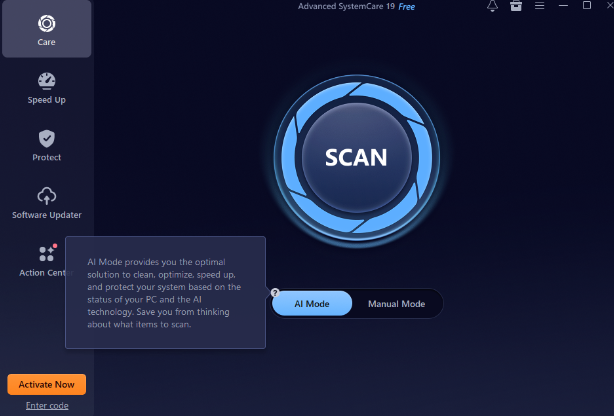
The install itself took less than a minute, and the interface that greeted me was clean and easy to read even for someone who has never used a Windows cleaner before. The left sidebar lists five main sections: Care, Speed Up, Protect, Software Updater, and Action Center. In the center of Advanced SystemCare sits a large circular Scan button, and just below it a toggle to switch between AI Mode and Manual Mode. Nothing about the layout felt cluttered, which mattered to me because my old desktop already struggled with heavy applications.
AI Mode Versus Manual Mode
Before running anything, I hovered over the AI Mode toggle to see what it did. A short tooltip explained that AI Mode analyzes the current state of the PC and automatically selects the best combination of cleaning, optimization, and protection tasks, so I would not need to decide which items to scan myself.
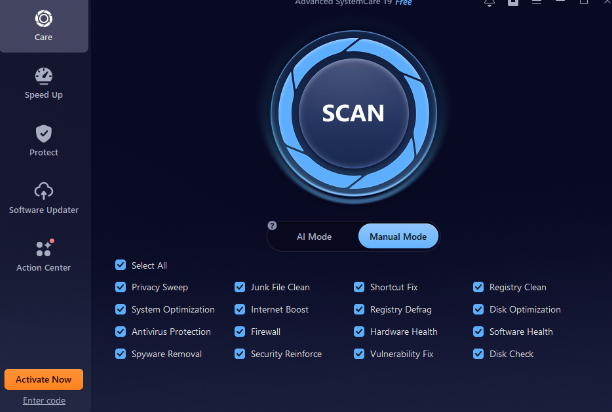
Since I wanted to see everything under the hood for this review, I switched to Manual Mode instead. This view lists every category the program can check, including privacy sweep, junk file clean, shortcut fix, registry clean, system optimization, internet boost, registry defrag, disk optimization, antivirus protection, firewall, hardware health, software health, spyware removal, security reinforce, vulnerability fix, and disk check. All sixteen boxes were selected by default, which I left as is for my first pass.
Scan and Fix the Damage
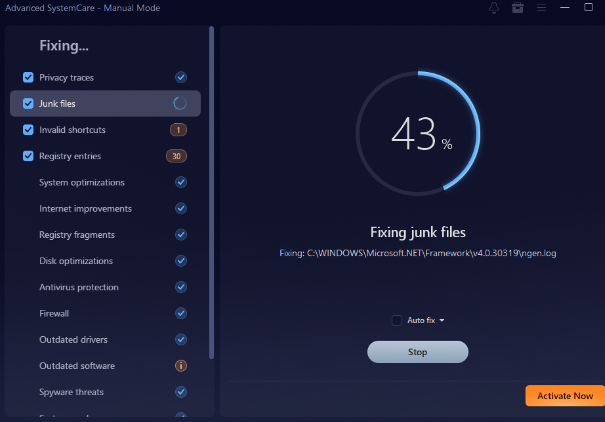
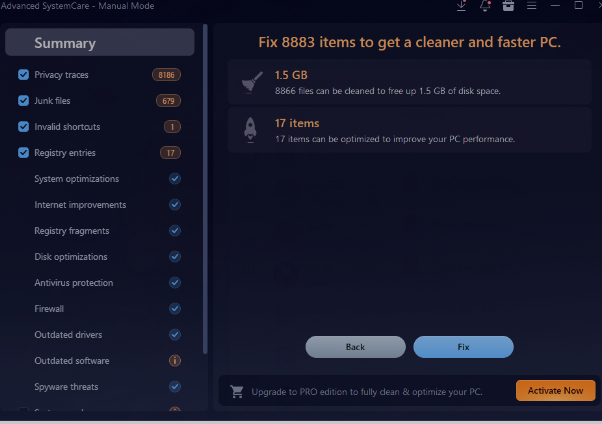
Clicking Scan opened a dedicated Manual Mode window with a progress ring and a running list of categories down the left side. As the scan moved along, numbers started appearing next to each item. Once the scan finished, I was taken to a summary screen showing the full damage report: 8,186 privacy traces, 679 junk files, one invalid shortcut, and 17 registry entries, adding up to 1.5 GB of reclaimable space, plus 17 optimization items and one security item. I clicked Fix and watched the second progress bar work through each category in order. The interface named the exact file it was working on in real time, which felt more transparent than most cleanup tools I have used before.
The Results After the First Run
When the process finished, the summary screen reported that my system was clean, with 1.5 GB of files removed across 75 individual files in that particular pass. The number looked smaller than the earlier estimate because some items had already been addressed automatically as the fix ran through dependent categories. More importantly, my desktop felt noticeably snappier when opening File Explorer and switching between browser tabs, which was the exact kind of everyday friction I had been hoping to fix.
Speed Up: Where I Found the Real Gains
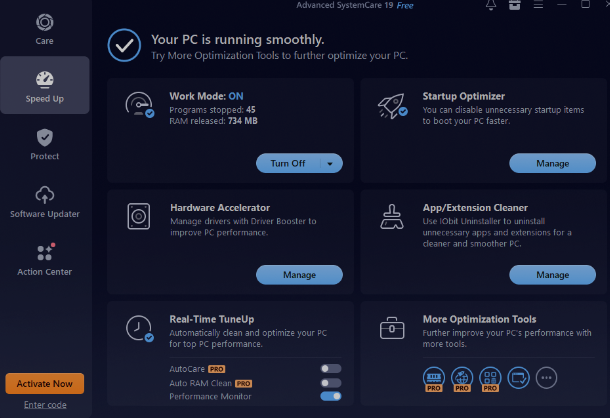
The Speed Up tab is where I spent the most additional time. Turning on Work Mode stopped 45 background programs and released 734 MB of RAM immediately, which on an eight gigabyte machine is a meaningful chunk of memory back in circulation. The same screen offers a Startup Optimizer to manage which programs load when Windows boots, a Hardware Accelerator for driver management, and an App and Extension Cleaner for removing software I no longer use. For anyone whose PC crawls at startup, this single tab of a PC cleaner does most of the heavy lifting.
Also a Powerful Shield for Your Privacy
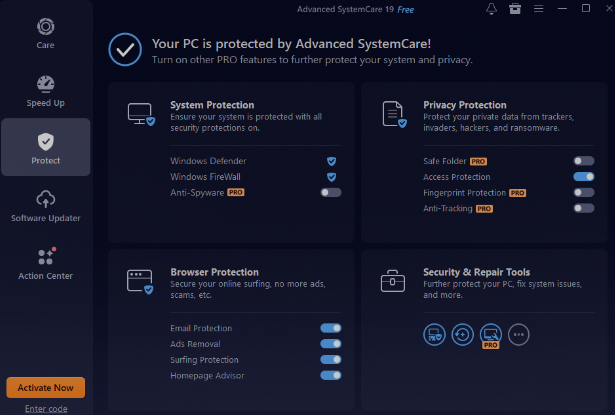
The Protect section confirmed that Windows Defender and Windows Firewall were both active, and it grouped browser protections such as email protection, ad removal, surfing protection, and a homepage advisor into one place. A few advanced features like Anti-Spyware, Safe Folder, and Anti-Tracking are marked as PRO, but the core protections that most home users rely on were already switched on for me without any extra configuration.
Software Updater Kept Everything Current
One thing I genuinely did not expect to like was the Software Updater tab. It scanned my installed programs and confirmed that 7-Zip, Google Chrome, Internet Explorer, Microsoft Edge, Mozilla Firefox, Skype, and WinRAR were all up to date, listing the exact current version number next to each one. I have manually updated software one program at a time for years, so having a single screen confirm everything was current in one glance was a small but real time saver.
A Toolbox I Did Not Expect
Digging further, I found a full catalog of more than 20 additional utilities organized into Featured Products, System Optimize, Security and Repair, and System Clean. This includes tools like Smart RAM, Registry Defrag, Disk Doctor, Duplicate File Finder, Large File Finder, and Process Manager. Some carry a PRO label that requires the paid version, but a good number, including File Shredder, Empty Folder Scanner, and Shortcut Fixer, are usable right away in the free edition.
My Honest Verdict
After three weeks of regular use, my nine year old desktop boots faster, has more free RAM available for everyday tasks, and no longer stutters when I open several browser tabs at once. I did not upgrade a single piece of hardware during this period. Based on this experience, I would recommend Advanced SystemCare to anyone whose PC has slowed down over time and who wants to try a software fix before spending money on new parts. It will not turn an old machine into a new one, but it clearly removes the accumulated digital clutter that was holding mine back.