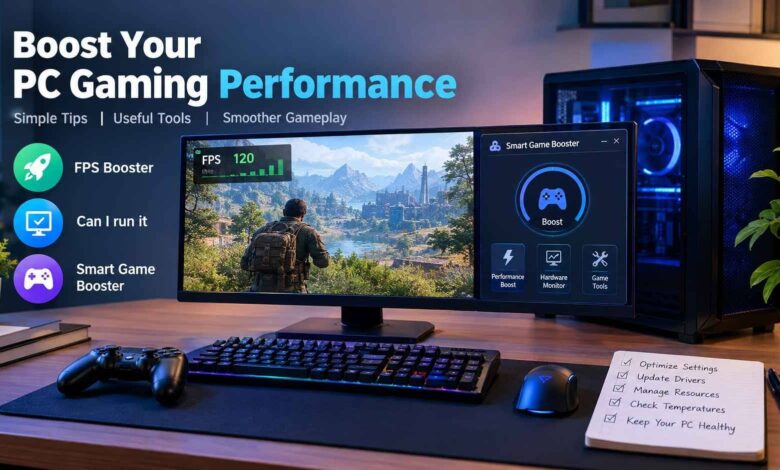

PC gaming performance is not just about having an expensive graphics card. Even a capable computer can experience stuttering, inconsistent frame rates, slow loading times, or unexpected lag when its settings and resources are not properly managed. The good news is that several practical adjustments can help improve gameplay without requiring an immediate hardware upgrade.
For players who want a simpler way to manage gaming performance, a utility such as Smart Game Booster can also be worth exploring. By combining basic system optimization with performance monitoring and game compatibility checks, gamers can better understand their PCs and make more informed decisions about improving their experience.
1. Understand What Is Affecting Your Gaming Performance
Before changing system settings or downloading optimization software, identify the problem you are trying to solve. Different performance issues can have very different causes.
For example, a game that runs smoothly at first but starts stuttering after 30 minutes may be experiencing thermal limitations. A game with consistently low frame rates might be too demanding for the installed graphics card. Meanwhile, sudden lag in an online match could be related to network congestion rather than the computer’s hardware.
Start by checking these common factors:
- CPU usage: A processor running near full capacity may struggle to handle additional game tasks.
- GPU usage: High graphics processing demands can limit frame rates, particularly at higher resolutions.
- Available RAM: Insufficient memory can lead to stuttering and increased reliance on slower storage.
- Storage space: A nearly full system drive can create problems with updates, temporary files, and general system maintenance.
- Temperature: Excessive CPU or GPU heat can cause hardware to reduce its performance to protect itself.
- Network stability: High latency, packet loss, and unstable connections can affect online gameplay.
Understanding the cause makes it easier to choose a solution that addresses the actual problem rather than applying random tweaks.
2. Adjust In-Game Graphics Settings
Graphics settings are among the easiest ways to improve performance without spending money. Modern games often include numerous options that affect image quality, rendering workloads, and frame rates.
If a game struggles to maintain a stable frame rate, begin by lowering demanding settings such as shadows, volumetric effects, reflections, and ambient occlusion. These features can place a substantial load on the graphics card, depending on the game and hardware.
Resolution is another important factor. Playing at a lower resolution generally reduces the number of pixels the GPU must render, which can improve performance. However, the image may appear less sharp, so find a balance that suits your display and preferences.
Other useful adjustments include:
- Reducing ray tracing quality or disabling ray tracing.
- Lowering texture quality if graphics memory is limited.
- Enabling a supported upscaling feature when appropriate.
- Disabling unnecessary visual effects.
- Setting a reasonable frame-rate limit to improve consistency.
Change one or two settings at a time and test the results. This approach helps you identify which adjustments make a meaningful difference without unnecessarily reducing visual quality.
3. Use an FPS Booster to Manage System Resources
Frames per second, commonly known as FPS, measures how many individual frames a game displays each second. Higher frame rates can make gameplay feel more responsive, although consistency is also important.
A game running at 90 FPS with frequent drops may feel less comfortable than one maintaining a steady 60 FPS. Therefore, improving gaming performance involves more than chasing the highest possible number.
An FPS Booster can be useful when background applications and unnecessary processes consume resources that would otherwise be available to a game. Optimization utilities may help manage selected processes, reduce avoidable system activity, and make certain performance adjustments easier to access.
Smart Game Booster is one option for Windows users who want to manage gaming-related optimization from a single interface. Its available features include one-click boosting, performance tools, and hardware monitoring.
However, results depend on the computer and the game. A utility cannot eliminate every performance limitation, and it will not turn an entry-level graphics card into a high-end model. If the GPU is already working at full capacity, adjusting graphics settings or upgrading hardware may provide a more noticeable improvement.
For a fair comparison, record your frame rate before making changes, repeat the same section of gameplay afterward, and compare the results under similar conditions.
4. Check Whether Your PC Can Run a Game
One common mistake is purchasing or downloading a demanding game without checking whether the computer meets its requirements. Minimum specifications generally indicate the hardware needed to run a game under basic conditions, while recommended specifications provide a more useful reference for a better experience.
Before installing a new title, check its requirements on the developer’s official website or store page. Pay attention to the processor, graphics card, RAM, operating system, and available storage.
You can also use the Can I run it tool to help assess whether your computer meets a game’s hardware requirements. Checking compatibility beforehand can help you decide whether to proceed with an installation, adjust your expectations, or consider an upgrade.
Keep in mind that meeting the minimum requirements does not guarantee smooth performance at high settings. Two computers with similar specifications may produce different results because of cooling, driver versions, background applications, and other system differences.
It is also worth checking whether the game supports your operating system and any graphics technologies it requires. These details can prevent compatibility problems before they become frustrating troubleshooting tasks.
5. Keep Graphics Drivers Updated
Graphics drivers help the operating system and applications communicate with the GPU. Updates may introduce game-specific optimizations, address bugs, improve compatibility, or resolve stability issues.
If you regularly play newly released games, keeping your graphics drivers reasonably current is a sensible maintenance habit.
For NVIDIA and AMD graphics cards, download drivers through the manufacturer’s official software or support website. Intel graphics users should similarly check Intel’s official support resources or the computer manufacturer’s recommendations.
Before installing a driver update, read the release notes to see whether it addresses a problem relevant to your system. If a game begins crashing after an update, investigate the issue rather than assuming that the newest driver will always be the best option.
Avoid downloading drivers from unfamiliar websites. Using official sources reduces the risk of installing incorrect or potentially unsafe files.
6. Reduce Unnecessary Background Activity
Background applications can compete with games for processor time, memory, storage access, and network bandwidth. Browsers with numerous tabs, large downloads, recording applications, and software updates are common examples.
Before launching a demanding game, close applications you do not need. Check the Windows Task Manager to identify programs consuming unusually high amounts of CPU, memory, or disk resources.
Be careful when ending processes. Some are essential to Windows, audio devices, security software, or other hardware functions. Closing unfamiliar system processes can cause instability or unexpected errors.
Smart Game Booster provides a convenient approach to selected gaming optimization tasks, but users should review the settings before applying them. Save open work first, and avoid disabling essential security or system services simply to gain a small performance improvement.
A short preparation routine can make a difference on computers with limited resources, especially when several applications normally run at startup.
7. Monitor Temperatures and Prevent Overheating
Heat can affect performance even when the hardware is powerful enough to run a game. Modern processors and graphics cards manage their temperatures automatically, and excessive heat may cause them to reduce clock speeds.
If frame rates decline as a gaming session continues, check CPU and GPU temperatures alongside their utilization. Monitoring these figures can help distinguish a thermal problem from a graphics setting or compatibility issue.
Smart Game Booster includes hardware monitoring features that can display CPU and GPU temperatures and usage. Such information can help users identify patterns while playing demanding games.
If temperatures are consistently high, consider cleaning dust from ventilation areas, improving airflow around the computer, and checking that fans are operating correctly. Laptop users should avoid blocking air intakes by placing the machine on soft surfaces.
Do not change voltage or overclocking settings without understanding the associated risks. Unstable settings can cause crashes, and excessive heat may shorten component lifespan. For most users, reliable cooling and sensible power settings are better starting points than aggressive tuning.
8. Improve Overall Windows Performance
Gaming performance can also benefit from regular system maintenance. Start by removing applications you no longer use, keeping adequate free storage space, and installing relevant Windows updates.
If you use a traditional hard disk, check whether its condition and performance are affecting loading times. Solid-state drives generally provide faster access to game files, although moving a game to an SSD will not necessarily increase its average FPS.
You can also review startup applications and disable unnecessary programs from launching automatically. This may reduce background activity after Windows starts and make the system feel more responsive.
Avoid registry cleaners, unfamiliar optimization scripts, and tools that promise dramatic improvements through undocumented changes. More aggressive optimization is not always better, and unnecessary system modifications can create new problems.
A useful maintenance routine focuses on measurable issues: storage capacity, unwanted startup programs, driver problems, overheating, and resource consumption.
9. Create a Simple Performance Testing Routine
Once you have made a few adjustments, test whether they actually help. Without consistent testing, it is easy to mistake a temporary improvement for a meaningful change.
Choose a repeatable section of the game and note the average FPS, noticeable stutters, loading time, and system temperatures. Repeat the test after changing settings, ideally using the same resolution and graphics configuration.
If the game includes a built-in benchmark, use it to compare results. Otherwise, play the same level or repeat a similar activity under comparable conditions.
Change only a small number of variables between tests. For example, first close unnecessary applications, then test the result. Next, adjust shadows or resolution and test again. This makes it easier to determine which change is responsible for any improvement.
A performance overlay can help you observe frame rates and hardware usage during gameplay, while a temperature monitor can reveal potential cooling issues. Keep a simple record of your results so you can reverse changes that do not help.
Final Thoughts
Improving PC gaming performance usually starts with understanding the problem rather than immediately purchasing new hardware. Adjusting graphics settings, updating drivers, reducing unnecessary background activity, monitoring temperatures, and maintaining sufficient storage can all contribute to a more reliable gaming experience.
Smart Game Booster offers Windows gamers a convenient way to explore selected optimization features, monitor hardware performance, and check whether their PCs meet game requirements. It may be helpful for users who prefer having several gaming-related tools in one place, although its actual benefits will depend on the system and the specific game.
The most effective approach is to make careful adjustments, test the results, and prioritize stability over unrealistic performance promises. With a little troubleshooting and regular maintenance, many gamers can identify avoidable performance problems and make better use of the hardware they already own.