
Audio files come in many formats, and not every format works equally well across phones, computers, media players, and other devices. MP3 remains a common choice when someone wants an audio file that is easy to store, play, or share.
Convertio lets users convert to mp3 from supported audio formats through a web browser, while the actual conversion is processed on its servers. This can be useful when you have a WAV, FLAC, M4A, OGG, or another supported audio file but need an MP3 version for everyday use.
This guide explains how the process works, what settings you can change, and what you should know before converting your files.
What Is Convertio’s MP3 Converter?
Convertio is an online file conversion service that supports audio, video, images, documents, and several other file types. Its MP3 converter is designed specifically for conversions involving the MP3 audio format.
Instead of installing a separate desktop program, users can upload a supported file through their browser, select MP3 as the required output, and start the conversion.
According to Convertio, file processing takes place on its servers. This means your computer or phone does not have to perform the conversion itself.
Why Convert Files to MP3?
There is no single audio format that is best for every situation. WAV and FLAC, for example, can be useful when audio quality is important, while MP3 is often chosen when file size and broad compatibility matter more.
People commonly convert files to MP3 when they want to:
- Play audio on a wider range of devices and applications.
- Reduce the amount of storage used by an audio file.
- Share audio more easily.
- Prepare recordings for everyday listening.
- Keep a more convenient copy of a larger audio file.
Quick Note: MP3 uses lossy compression. A smaller MP3 file can therefore lose some audio information compared with the original, particularly when a low bitrate is selected.
How to Convert Files to MP3 with Convertio
The basic process is fairly short. You mainly need to provide the source file, choose the output, and decide whether you want to change any audio settings.
1. Upload Your File
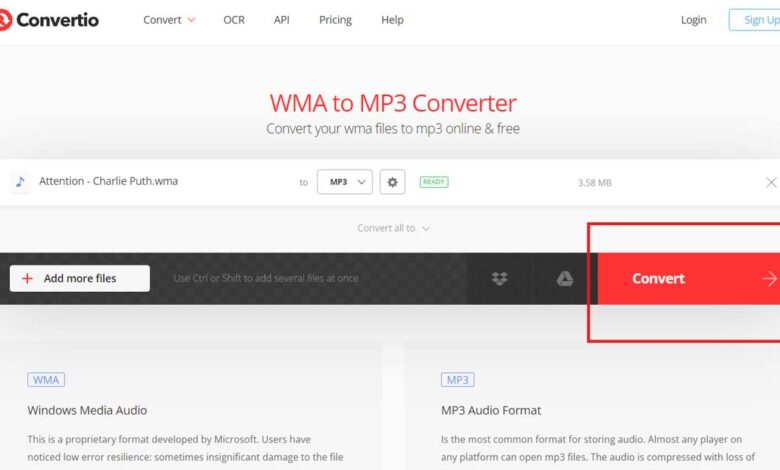
Open the Convertio MP3 Converter and choose the file you want to process.
Convertio provides options for selecting files from a device and also supports certain cloud or online sources. Make sure you choose the correct file before starting the conversion.
[Image: Convertio MP3 Converter upload screen]
2. Choose MP3 as the Output Format
Select MP3 as the format you want to create.
This step tells the converter what type of output file it should produce. It is worth checking the selected format before moving forward, especially when working with several files.
3. Adjust Audio Settings if Needed
You do not always need to change the advanced options. However, Convertio provides settings that can be useful when you want more control over the resulting audio.
Depending on the conversion, these can include bitrate, sample rate, and audio channels.
4. Start the Conversion
Start the conversion once the input and output options are correct.
The file is processed online rather than converted locally by your device. Processing time can vary depending on factors such as the source file and its size.
5. Download the MP3 File
When processing is complete, download the resulting MP3 file.
It is a good idea to play the downloaded file briefly. Check that the audio sounds right and that the full recording was converted before deleting your original.
Audio Settings You Can Adjust
Audio settings can look technical at first, but most users only need to understand a few basic options.
Bitrate
Bitrate affects how much audio data is stored each second. A higher bitrate generally keeps more audio information but also creates a larger file.
Lower bitrates can produce smaller files, although reducing the bitrate too much can make changes in audio quality more noticeable.
Sample Rate
Sample rate describes how often the audio signal is sampled each second.
You normally do not need to change this setting for a simple conversion unless you have a particular technical requirement.
Audio Channels
Audio can use different channel arrangements, such as mono or stereo.
Stereo uses separate left and right channels, while mono uses a single audio channel. The right option depends on the source material and how the finished file will be used.
Popular File Formats You Can Convert to MP3
Convertio supports conversions between MP3 and a range of audio formats. Some common examples include:
| Input Format | Output | Common Reason |
|---|---|---|
| WAV | MP3 | Create a smaller, easier-to-share copy |
| FLAC | MP3 | Make lossless audio more convenient for everyday listening |
| M4A | MP3 | Improve compatibility with some devices or software |
| OGG | MP3 | Create a more commonly supported audio file |
| WMA | MP3 | Use older audio files with newer apps and devices |
| AIFF | MP3 | Reduce file size and improve everyday compatibility |
The best format still depends on what you plan to do with the audio. Converting everything to MP3 is not always necessary, particularly when preserving the highest possible quality is the main goal.
MP3 vs Other Audio Formats
MP3 is popular, but understanding how it differs from a few other formats can help you decide whether conversion makes sense.
| Format | Compression | Typical File Size | Common Use |
|---|---|---|---|
| MP3 | Lossy | Small | Everyday listening and sharing |
| WAV | Usually uncompressed | Large | Recording and audio editing |
| FLAC | Lossless | Medium to large | High-quality music storage |
| M4A | Often lossy | Small | Music and audio on modern devices |
MP3 achieves smaller files by using lossy compression. Some audio information is removed during that process, which is why repeatedly converting already compressed audio is generally not ideal when quality matters.
Does Convertio Require Software Installation?
Convertio works through a web browser, so a separate conversion program does not need to be installed for the normal online process.
This can be convenient when you only need to convert a file occasionally or when you are using a device where installing another application would be unnecessary.
There is a trade-off, however. An online converter requires the source file to be uploaded for processing, while some desktop conversion programs can process files locally without uploading them.
Which approach makes more sense depends on the file and your own needs.
File Privacy and Security
Privacy is worth considering whenever a file is uploaded to an online service.
Convertio states that uploaded input files and temporary files are deleted after processing. According to its security information, converted output files are automatically deleted after 24 hours, and users can delete output files themselves before that period ends.
Convertio also states that file conversions run in isolated environments.
These measures are useful to know about, but it is still sensible to think about the type of information contained in a file before uploading it to any online converter. Highly confidential or sensitive material may be better handled with a trusted local application when possible.
Tips for Better MP3 Conversions
A few simple checks can help you get a more useful result:
- Keep the original file. Do not delete it until you have checked the converted version.
- Start with the best source available. Converting a poor-quality recording to MP3 will not restore missing audio detail.
- Think about bitrate. Very low settings can save space but may noticeably affect sound quality.
- Listen after conversion. Check the beginning, middle, and end if the recording is important.
- Avoid unnecessary repeated conversions. Re-encoding lossy audio several times can further reduce quality.
- Consider privacy. Check whether the source contains sensitive information before uploading it.
The goal is not simply to create the smallest possible MP3. A useful conversion should balance file size, compatibility, and acceptable audio quality.
Final Thoughts
Converting audio to MP3 can make sense when you need a smaller file or a format that works across a broad range of devices and applications.
Convertio handles the process in a browser and provides additional controls for users who want to adjust settings such as bitrate, sample rate, or audio channels. The process itself is simple: upload the source, choose MP3, review the settings, convert the file, and check the downloaded result.
MP3 is not the right choice for every audio project. If preserving original quality is important, keeping a WAV, FLAC, or another high-quality source alongside the MP3 version is a sensible approach.
Frequently Asked Questions
Can Convertio convert WAV to MP3?
Yes. WAV is among the audio formats that Convertio supports for conversion to MP3.
Can I convert FLAC files to MP3?
Yes. Convertio supports FLAC-to-MP3 conversion. Keep in mind that FLAC is lossless, while MP3 uses lossy compression.
Do I need to install Convertio?
No separate desktop software is required for its normal online converter. The conversion can be carried out through a supported web browser.
Can I change the MP3 bitrate?
Yes. Convertio provides bitrate controls as part of its available audio conversion settings.
Does converting to MP3 reduce audio quality?
It can. MP3 uses lossy compression, so some audio information is removed during encoding. The amount of noticeable change depends partly on the source and selected settings.
How long does Convertio keep converted files?
Convertio states that output files are automatically deleted after 24 hours. Users can also delete their converted files manually before that time.