

Missing Important Files? Start with These Safe Recovery Steps
Most data-loss stories start with an ordinary moment. You delete a duplicate draft, empty the Recycle Bin too soon, format the wrong drive, or find files missing after a Windows update. Sometimes, an external drive suddenly prompts you to format it.
But what you do next matters more than which solution you choose. Windows usually marks deleted files’ space as available rather than erasing their contents. New data can overwrite that space, so if you want to recover deleted files from a PC, stop writing to the affected drive immediately.
This guide shares the first steps to take, built-in Windows recovery options, when free data recovery software helps, and what to do if software fails.
Part 1: What to Do Immediately After Losing Files
Treat the next ten minutes like a crime scene. Don’t touch anything that doesn’t need touching:
- Stop creating or copying files: Windows and background apps write data even when the PC seems idle.
- Don’t install recovery software on the affected drive: If files were lost from C:, install the tool on another drive or a USB stick instead.
- Avoid formatting, partitioning, defragmenting, or resetting the PC: These actions can make recovery harder.
- Safely disconnect affected external drives: Use “Safely Remove Hardware” and leave the drive unplugged until you’re ready to scan.
- Prepare another drive for recovered files: Save recovered data somewhere other than the affected drive.
Note: Acting quickly improves your chances, but no tool can guarantee recovery once data has been overwritten. Be wary of anyone who promises otherwise.
Part 2: Identify the Data-Loss Scenario
Different kinds of loss call for different first moves to recover deleted files from a PC. Match the situation to the right starting point. This will save you from reaching for heavy tools when the answer is two clicks away:
| Situation | Best First Action |
| Recently deleted file | Check the Recycle Bin |
| Shift-deleted file | Use recovery software |
| Missing OneDrive file | Check the online OneDrive Recycle Bin |
| File History was enabled | Restore a previous version |
| Formatted or inaccessible drive | Perform a deep scan |
| Clicking or undetected drive | Contact a professional service |
Beyond the table, distinguish logical data loss from physical hardware failure:
- Logical loss: This means the drive functions, but files are deleted, formatted, or hidden by file-system corruption or a lost partition. Recovery software may help if Windows can still detect the drive.
- Physical failure: This means the hardware is failing. Warning signs include clicking, grinding, repeated disconnects, or a drive that won’t appear. Repeated scans can worsen the damage. If you notice these symptoms, skip to Part 6.
Not all deleted files reach the Recycle Bin. USB drives, network locations, command-line deletions, and Shift+Delete bypass it. That’s why some files leave no trace in the Bin.
Part 3: Try Built-In Windows Recovery Methods
Free recovery doesn’t always require third-party software. Windows has several built-in safety nets, but they only function if the right features or backups are available:
Method 1: Check the Recycle Bin:
First, look into the Recycle Bin if you haven’t emptied it yet. Your deleted files might reside there:
- Open the “Recycle Bin.” Find the file and select it.
- Click “Restore” to return it to its original location.
Older items may be removed automatically when the Bin reaches its size limit.
Method 2: Look Into OneDrive
If your folders sync to OneDrive, check the recycle bin at onedrive.com. Deleted files may be missing from your local Bin, especially if they were online-only. Personal accounts retain deleted items for 30 days and work or school accounts for 93 days, unless policies differ. Microsoft 365 subscribers can also restore their OneDrive to a point within the last 30 days.
Method 3: Previous Versions
In case Windows saved an earlier version of the folder, you may be able to recover deleted files from a PC without installing additional software. This works only if earlier versions exist:
- Right-click the original folder and select “Restore previous versions.”
- Open an available snapshot and copy out what you need.
Method 4: File History
If you enabled File History before losing your files, you may be able to recover deleted files by restoring an earlier saved version. But if it was never configured, there’s nothing to recover from it:
- Open “File History” through “Control Panel.”
- Browse and restore saved versions.
Method 5: Windows Backup
Windows Backup is another place to check. It may help restore supported folders and settings, depending on what you backed up before the files went missing:
- Right-click “Start.” Choose “Settings.” Tap “Accounts.”
- Click “Windows backup.” Pick a backup and restore.
Windows backup mainly syncs folders through OneDrive and saves settings and app lists for setting up a PC again. It isn’t a full system image or a tool for recovering individual deleted files. So, check OneDrive’s recycle bin and version history instead.
One caution: Newer Windows 11 versions include “Point-in-time restore” beneath “Settings > System > Recovery.” It rolls the system back to an earlier snapshot, removing changes made afterward. This feature is intended for system problems, not recovering a single file, so avoid using it while rescuing data.
Part 4: Recover Files with 4DDiG Data Recovery
When the Recycle Bin is empty and no backup has your file, a free data recovery software is the next step. 4DDiG Free Data Recovery can help with accidental deletions, formatted drives, corrupted file systems, and inaccessible storage that Windows can still detect.
Main Features of 4DDiG Data Recovery:
- Recovers permanently deleted files, including those removed with “Shift + Delete.”
- Restores files deleted after the Recycle Bin has been emptied.
- Supports 2,000+ file types, including documents, photos, videos, audio, and archives.
- Recovers files from formatted HDDs, SSDs, USB drives, and other storage devices.
- Helps recover data from deleted, corrupted, or inaccessible partitions.
- Lets users preview and select files before recovery.
- Provides search and filters to locate specific files quickly.
- Supports internal and external drives, USB sticks, and SD cards.
Note: The free version of 4DDiG Data Recovery offers up to 2 GB for Windows users and 500 MB for Mac users. Limits can change, so check the official page before starting. Pro removes the cap.
Guide to Using 4DDiG Data Recovery:
Here’s how to recover permanently deleted files on Windows 11/10 with 4DDiG Data Recovery:
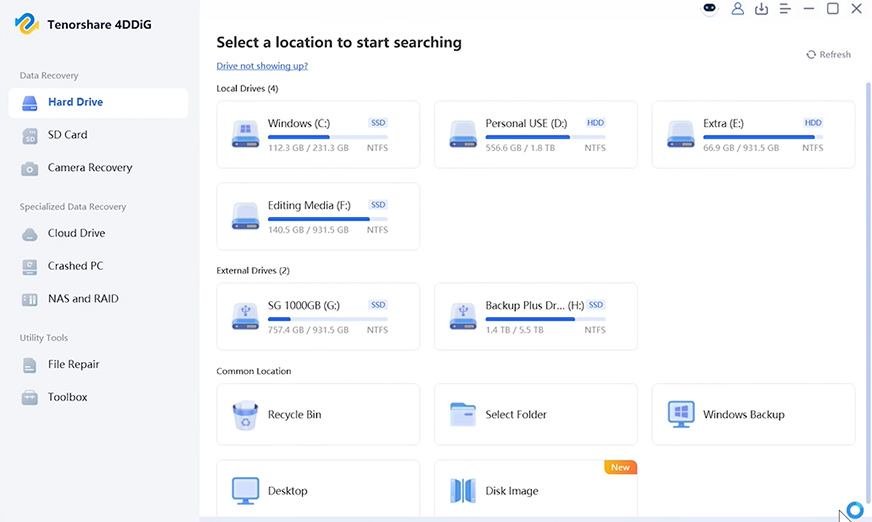
Step 1: Download and install 4DDiG:
Install 4DDiG Data Recovery on your computer drive. But not on the one where your files were lost. Then, select the affected partition or connect the affected external device, and choose it.
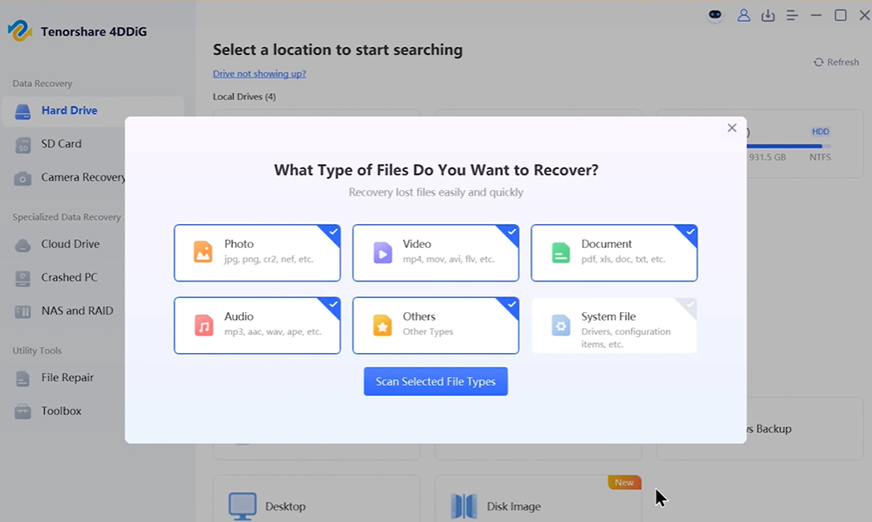
Step 2: Start the scan:
Pick specific file types to scan. Start the scan. For formatted or damaged storage, let the scan run to the end instead of stopping at the first screen of results. You can pause or stop anytime once your file turns up.
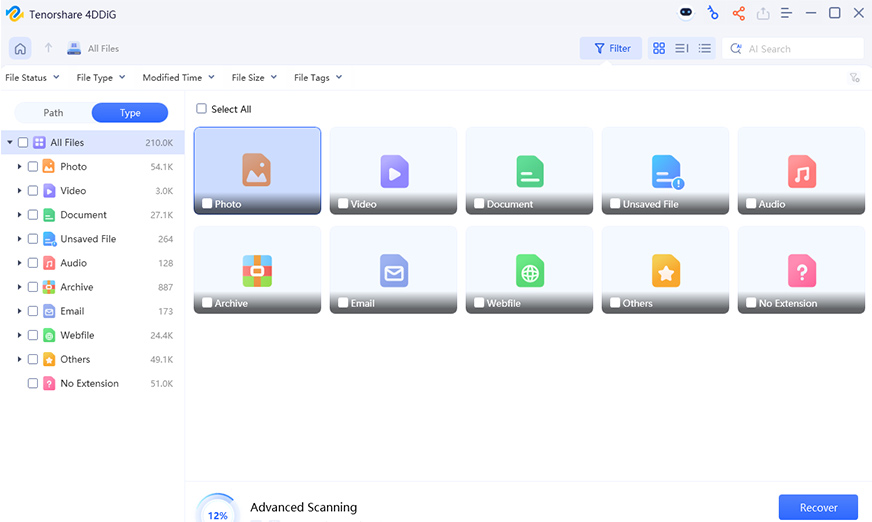
Step 3: Filter the results:
Preview files, and use search or filters to narrow by path, date, name, or file type. Then, recover selected items to another drive or cloud.
Important: Recovery depends on whether the files have been overwritten, whether the drive is encrypted, and the device’s condition. No software can change these factors. It can only recover what remains accessible.
Part 5: Try Windows File Recovery
You can also use Microsoft’s free command-line hard drive data recovery software, “Windows File Recovery,” through the “Microsoft Store.” Though it’s for advanced users and has no graphical interface or file preview. If you’re fine with that, here’s how to use it:
- Open it from the Start menu and use this syntax:
- winfr C: E: /extensive /n \Users\Username\Documents\
Replace “Username” with your Windows account name and use quotation marks for paths containing spaces. Here, “C:” is the source drive, “E:” is the destination, “/extensive” selects the scan mode, and “/n” filters by name or path.
The source and destination must be different drives. Recovered files go into a recovery folder on the destination drive. Choose your scan mode:
- Regular: Best for recently deleted files on healthy NTFS drives. Start here if unsure.
- Extensive: Better for older deletions, formatted or corrupted drives, and non-NTFS file systems such as FAT32 and exFAT.
Note: Extensive scans take longer and may return files with generic names that require manual sorting. If “Regular” finds nothing, try “Extensive.”
Part 6: When Recovery Software May Not Work
An honest guide includes cases where computer file recovery software can’t help:
- Overwritten files: Once new data replaces the old contents, recovery is usually impossible.
- Securely erased data: Shredders, drive-wipe tools, and secure Windows reset options are designed to prevent recovery.
- Locked encryption: Without the BitLocker password or recovery key, encrypted data remains unreadable.
- Severe SSD data loss: SSDs use TRIM to clear deleted data, making recovery harder and sometimes faster to lose than on traditional hard drives. Stop using the drive immediately.
- Mechanical damage: Software can’t fix a damaged read/write head or failed controller.
If a drive clicks, grinds, overheats, disconnects repeatedly, or isn’t detected, seek professional recovery. Don’t keep restarting or scanning it, and never open it yourself. Further attempts can reduce what specialists may recover.
Part 7: Prevent Future Computer Data Loss
There’s no guarantee you won’t face data loss again. However, you can reduce its chances by preparing in advance. Here’s how:
- Enable File History: Open “Control Panel,” select “Save backup copies of your files with File History,” and turn it on. You’ll need a separate drive.
- Configure Windows Backup and OneDrive: Beneath “Settings > Accounts > Windows backup,” choose which folders to sync. Supported settings, preferences, and Store app lists can also be backed up.
- Keep an offline backup: Cloud sync can mirror accidental deletions, so keep an external drive unplugged when not backing up.
- Test your backups: Open a few saved files periodically. An untested backup isn’t a dependable safety net.
With Windows updates approaching, check your backups before upgrading. Confirm your files are protected and recoverable before making major system changes.
Final Words
A safe file recovery process starts with minimizing use of the affected drive and checking the Recycle Bin and your existing backups. In case you don’t have a backup, employ 4DDiG Free Data Recovery to recover deleted files from a PC. The tool can scan selectively, supports a wide range of file formats and devices, and lets you preview files before recovery. But if the drive is making noises it shouldn’t, stop and call a professional.
FAQs
-
Can permanently deleted computer files be recovered?
They may be recoverable if the underlying data has not been overwritten. Stop using the affected drive and begin recovery as soon as possible.
-
Can I recover deleted PC files without a backup?
Yes, data recovery software like 4DDiG Data Recovery can retrieve files that aren’t in the Recycle Bin or when File History isn’t enabled. But success depends on the storage device and what you do next.
-
Is free computer file recovery software safe?
It can be safe if you download it from the official website. Check its recovery limits, privacy terms, supported devices, and preview functions before using it.
-
Can 4DDiG recover files from a formatted computer drive?
Yes. 4DDiG Data Recovery can scan a detectable formatted drive for recoverable files. Avoid writing new data to the drive and restore found files to another location.
-
Should I repair a corrupted drive before recovering files?
Not when the drive contains valuable data. Repair or formatting operations may modify the file system, so recover important files first, then attempt repairs afterward.