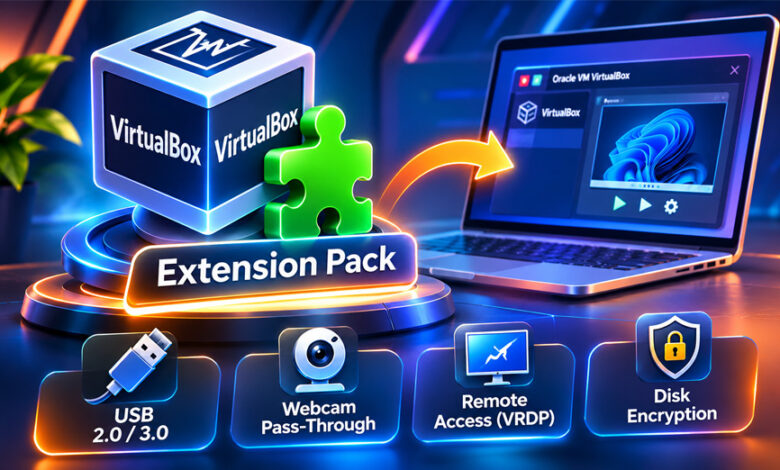

VirtualBox Extension Pack is an add-on for Oracle VM VirtualBox. It adds extra features such as USB support, remote access, and webcam pass-through.
People usually look for the Extension Pack when they need features that are not available in their basic VirtualBox setup. This guide explains what it is, its main features, how to download and install it, and how to fix common problems.
What Is VirtualBox Extension Pack?
VirtualBox Extension Pack is a package that adds extra features to Oracle VM VirtualBox. It is not a separate virtual machine program. It works with VirtualBox.
VirtualBox lets you create virtual machines on your computer. For example, you can run Linux inside a Windows computer without removing Windows.
The Extension Pack gives VirtualBox some extra functions. It is normally downloaded as a file ending in .vbox-extpack.
The Extension Pack version should match your VirtualBox version. Using different versions can cause installation errors or make some features stop working.
What Does VirtualBox Extension Pack Do?
VirtualBox Extension Pack gives VirtualBox extra tools. These tools are useful when a virtual machine needs access to certain hardware or remote features.
For example, USB pass-through lets a virtual machine use supported USB devices connected to the main computer.
The Extension Pack can also provide features such as webcam pass-through and VirtualBox Remote Desktop Protocol.
However, not every user needs it. If the normal VirtualBox features are enough for you, there may be no reason to install the Extension Pack.
Main Features of VirtualBox Extension Pack
The available features can change between VirtualBox versions. Some of the main features linked with the Extension Pack are explained below.
USB 2.0 and USB 3.0 Support
USB support is one of the main reasons people install the VirtualBox Extension Pack.
It lets a virtual machine use supported USB devices connected to the host computer. These can include USB drives, external hard drives, network adapters, and webcams.
For example, you can connect a USB drive to your Windows computer and then use that drive inside a Linux virtual machine.
Some advanced USB options may not work without the required Extension Pack.
Host Webcam Pass-Through
Host webcam pass-through lets a virtual machine use a webcam connected to the main computer.
This can be helpful when the webcam works on the host computer but does not have normal driver support inside the guest operating system.
How well it works can depend on your VirtualBox version, operating systems, webcam, and other hardware.
VirtualBox Remote Desktop Protocol (VRDP)
VirtualBox Remote Desktop Protocol, also called VRDP, can be used to access a virtual machine remotely.
This is useful when the VM is running on another computer or when you do not want to control it directly from the host.
The computer running VirtualBox must still be reachable over the network for remote access to work.
Other Version-Specific Features
Older VirtualBox Extension Pack documentation also mentions features such as disk image encryption and Intel PXE Boot ROM.
Disk encryption can help protect information stored on virtual disks. PXE boot can be used to start a virtual machine over a network.
VirtualBox has changed over the years. Some features may work differently in newer versions. Always check the features included with your exact VirtualBox release.
VirtualBox Extension Pack vs. Guest Additions
VirtualBox Extension Pack and Guest Additions are not the same thing.
| VirtualBox Extension Pack | VirtualBox Guest Additions |
|---|---|
| Adds features to VirtualBox | Adds tools inside the guest OS |
| Installed on the host computer | Installed inside the virtual machine |
| Can add advanced USB and other features | Can improve display, mouse, clipboard, and integration |
| Works with the main VirtualBox program | Works inside supported guest systems |
The Extension Pack is installed on the computer running VirtualBox.
Guest Additions are installed inside a virtual machine. They help the guest operating system work better with the host computer.
You may need both, depending on how you use VirtualBox. Installing one does not replace the other.
VirtualBox Extension Pack Compatibility
The Extension Pack should normally match your installed VirtualBox version.
For example, if you update VirtualBox but keep an older Extension Pack, some features may not work correctly.
You can check your VirtualBox version from the About section of the program. You can also use:
VBoxManage --versionAfter finding your version, download the matching Extension Pack.
Older Extension Pack versions may also be available for older VirtualBox releases. However, older software may not include newer fixes and security updates.
VirtualBox has supported operating systems such as Windows, macOS, Linux, and Solaris across different versions. Support can change, so check your VirtualBox version before installing it on a particular system.
How to Download VirtualBox Extension Pack
The safest option is to download the Extension Pack from the official VirtualBox website.
First, check your VirtualBox version. Then download the Extension Pack that matches it.
The downloaded file usually has a name similar to:
Oracle_VM_VirtualBox_Extension_Pack-[version].vbox-extpackThe version number changes with each release.
One Extension Pack file can generally work across the supported host systems for that VirtualBox release. You normally do not need a different Extension Pack file for Windows and Linux.
Older versions may also be available if you use an older VirtualBox release.
Avoid downloading the Extension Pack from unknown websites. An unofficial file could be old, changed, or unsafe.
How to Install VirtualBox Extension Pack Using the GUI
Installing the Extension Pack through the VirtualBox interface is usually the easiest method.
Open VirtualBox and find the Extensions section in its settings or tools area. The exact location may be slightly different depending on your VirtualBox version.
Choose the option to install a new Extension Pack. Find the .vbox-extpack file you downloaded and open it.
VirtualBox will show information about the package. Click Install, read the license agreement, and accept it if you agree.
After installation, the Extension Pack should appear in the list of installed extensions.
How to Install VirtualBox Extension Pack Using VBoxManage
VirtualBox includes a command-line tool called VBoxManage. It lets you manage VirtualBox without using its normal graphical interface.
The basic installation command is:
VBoxManage extpack install [path-to-file]Replace [path-to-file] with the location of your downloaded Extension Pack.
You may need administrator or root permission. You will also need to accept the license terms.
If an older Extension Pack is already installed, you can use:
VBoxManage extpack install --replace [path-to-file]To check installed Extension Packs, run:
VBoxManage list extpacksHow to Install VirtualBox Extension Pack on Windows
Windows users can install the Extension Pack through the VirtualBox interface or with Command Prompt or PowerShell.
If you use the command line, you may first need to open the VirtualBox installation folder. A common location is:
C:\Program Files\Oracle\VirtualBoxThen run:
VBoxManage extpack install [path-to-file]Use the full path to the downloaded file.
Read the license terms and enter y if you agree. Wait for the successful installation message.
Some systems may require administrator permission.
How to Install VirtualBox Extension Pack on macOS
On macOS, you can install the Extension Pack through the VirtualBox interface or Terminal.
For Terminal, a common command is:
sudo VBoxManage extpack install [path-to-file]Replace [path-to-file] with the correct location of the downloaded file.
Because the command uses sudo, macOS may ask for your password.
Read and accept the license terms to continue. When the process is complete, VirtualBox should show a successful installation message.
VirtualBox support can differ between Mac hardware and software versions. Check the documentation for your VirtualBox release if you use newer Mac hardware.
How to Install VirtualBox Extension Pack on Linux
Linux users can install the Extension Pack through the VirtualBox interface or Terminal.
For Terminal installation, you can use:
sudo VBoxManage extpack install --replace [file-name]Replace [file-name] with the correct Extension Pack file.
The --replace option is useful when you already have an older Extension Pack installed.
Accept the license terms when asked.
After installation, check the package with:
VBoxManage list extpacksIf the Extension Pack appears in the results, VirtualBox has recognized it.
How to Update VirtualBox Extension Pack
You should check the Extension Pack after updating VirtualBox.
First, find your new VirtualBox version. Then download the Extension Pack that matches it.
Install the new package through VirtualBox or VBoxManage. If needed, the --replace option can replace an older version.
After updating, run:
VBoxManage list extpacksThis lets you check which Extension Pack is installed.
Guest Additions are separate. You may also need to update Guest Additions inside your virtual machines after updating VirtualBox.
VirtualBox Extension Pack License and Cost
VirtualBox and its Extension Pack do not always use the same license.
Users must accept a license agreement before installing the Extension Pack. The exact rules can depend on how and where it is being used.
Licensing terms can also change. Personal users, students, businesses, and organizations should check Oracle’s current license before using the Extension Pack.
This is especially important for companies and commercial use. Do not assume that the same rules apply to personal and business use.
Is VirtualBox Extension Pack Safe?
The official VirtualBox Extension Pack is made to work with VirtualBox. Downloading it from the official source is the safest choice.
Avoid Extension Pack files from unknown websites. They could be outdated, changed, or unsafe.
Also make sure the Extension Pack matches your VirtualBox version.
Some features give a VM access to physical hardware or network functions. For example, USB pass-through lets the VM access a selected USB device. Only connect devices you trust and enable access when you need it.
Common VirtualBox Extension Pack Problems
Most problems are related to the wrong version, installation permissions, USB settings, or an older Extension Pack.
Extension Pack Version Mismatch
VirtualBox and the Extension Pack should use matching versions.
Check your VirtualBox version with:
VBoxManage --versionThen check your Extension Pack with:
VBoxManage list extpacksIf the versions do not match, download and install the correct Extension Pack.
USB 2.0 or USB 3.0 Is Not Working
First, make sure the required Extension Pack is installed. Then check the USB settings for your virtual machine.
Also make sure the main computer can detect the USB device.
USB problems can also come from permissions, drivers, guest settings, or another program using the device.
Extension Pack Installation Fails
Check that the Extension Pack matches your VirtualBox version.
Make sure the downloaded file is complete and that you have the required permissions.
You must also accept the license agreement before the installation can finish.
Old Extension Pack Is Still Installed
An older Extension Pack may remain after VirtualBox is updated.
Check installed packages with:
VBoxManage list extpacksIf needed, install the correct version and use the --replace option.
Extension Pack Does Not Appear After Installation
Check the Extensions section in VirtualBox.
You can also run:
VBoxManage list extpacksIf the Extension Pack is missing, check whether the installation finished correctly. You can also restart VirtualBox and check again.
If it still does not appear, make sure you downloaded the correct version and try installing it again.
Do You Need VirtualBox Extension Pack?
Not everyone needs the VirtualBox Extension Pack.
If you only use basic virtual machine features, the normal VirtualBox installation may be enough.
You may need the Extension Pack if you want features such as advanced USB support, VRDP, or host webcam pass-through.
Check the features available with your VirtualBox version before installing it. Features can change between releases.
Bottom Line
VirtualBox Extension Pack adds extra features to Oracle VM VirtualBox. These can include USB support, remote access, webcam pass-through, and other tools, depending on the version.
Always use an Extension Pack that matches your VirtualBox version. Download it from the official source and check the current license before using it for business purposes.
If you only need basic VirtualBox features, you may not need the Extension Pack.
Frequently Asked Questions
What is VirtualBox Extension Pack?
VirtualBox Extension Pack is an add-on that gives Oracle VM VirtualBox extra features. It works with VirtualBox and is not a separate virtual machine program.
Is VirtualBox Extension Pack free?
The rules can depend on how you use it. Check Oracle’s current Extension Pack license, especially before using it for business purposes.
Do I need VirtualBox Extension Pack?
You only need it if you want features that require the Extension Pack. Basic VirtualBox use may not need it.
Does VirtualBox Extension Pack support USB 3.0?
The provided sources list USB 2.0 and USB 3.0 support. Check your VirtualBox version because available features can change.
How do I know if VirtualBox Extension Pack is installed?
Check the Extensions section in VirtualBox or run VBoxManage list extpacks to see the installed packages.
Does the Extension Pack version need to match VirtualBox?
Yes. Using matching versions helps avoid installation errors and compatibility problems.
What is the difference between VirtualBox Extension Pack and Guest Additions?
The Extension Pack adds features to VirtualBox on the host computer. Guest Additions are installed inside a virtual machine to improve how it works with the host.
Can I install VirtualBox Extension Pack on Windows, macOS, and Linux?
Yes, the provided sources explain installation on Windows, macOS, and Linux. Support can still depend on your VirtualBox version and computer.
Crypto30x.com Complete Guide: Uses, Features, Safety, and Trading Claims