

I review a lot of paperwork. Onboarding forms, supplier applications, expense claims — most of it lands in my inbox as a PDF, and most of it comes back with the same handful of mistakes attached. Not because people are careless. Because filling out a PDF form still isn’t as obvious as it should be, and nobody’s ever actually shown them the right way to do it.
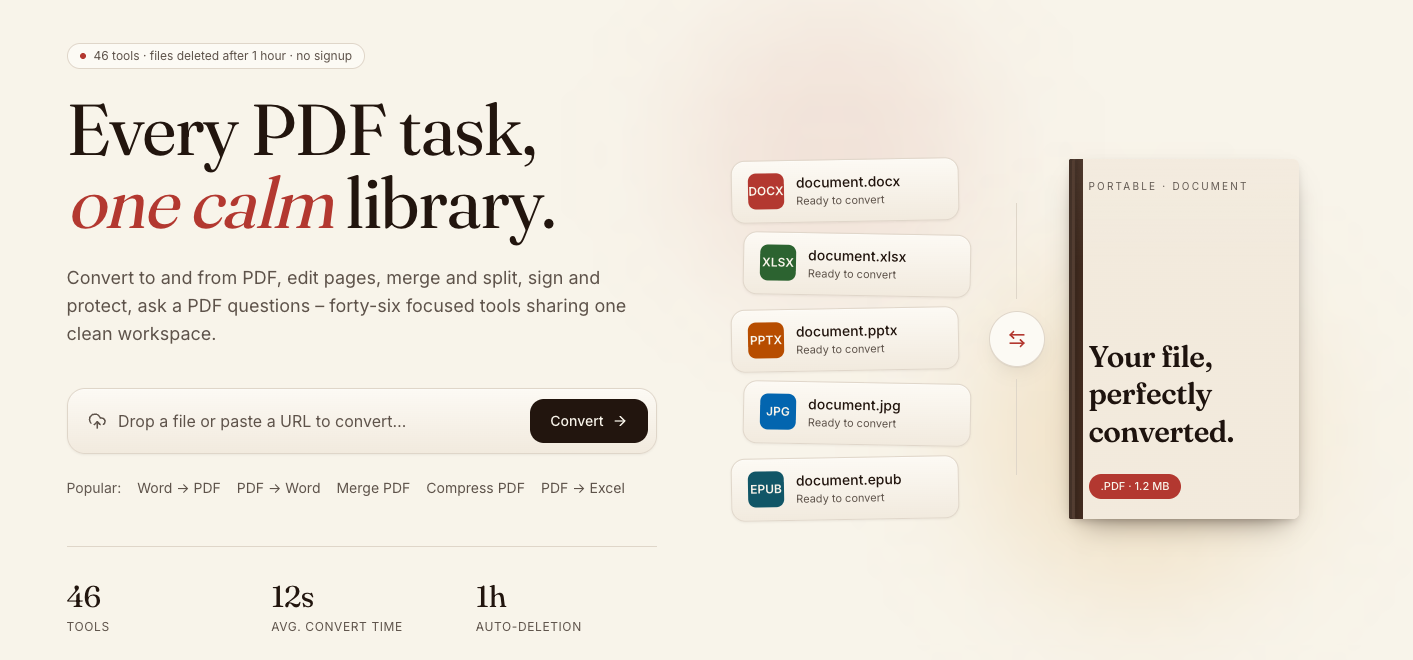
I switched most of my own form-filling over to PDF Books Lib a while back, mostly because it doesn’t make you sign up just to open a file (something that shouldn’t need saying, but here we are). It’s one of those tools you forget you’re using, which is exactly the point. Here are the five mistakes I keep seeing, and what I do differently now.
Mistake #1: Printing The Form First
This one still baffles me. Someone gets a PDF form, prints it, fills it in by hand, then scans it back in — adding two extra steps and a worse-quality result than if they’d just typed into the file. The scan is always slightly crooked, the handwriting is never as legible as they think, and half the time a corner gets cut off in the process. If a PDF has fillable fields, or even if it doesn’t, tools built for this let you type directly onto the page. No printer required.
Mistake #2: Typing Outside The Actual Field
Not every PDF has clearly marked form fields, and when it doesn’t, people improvise — dropping a text box roughly where the line is and hoping it lines up. It rarely does. What I do now is zoom in first, check whether the field is real or just a printed line, and place text accordingly rather than guessing.
Mistake #3: Forgetting To Flatten The Form Before Sending It
Here’s the one nobody tells you about. If you fill out fields and send the file as-is, some PDF viewers will show your entries as editable — meaning the person on the other end could technically change what you wrote, on purpose or by accident. I’ve seen this bite people on contracts specifically, where a number got adjusted after the fact and nobody could prove what the original entry actually said. Flattening the form bakes your answers into the page permanently, the same way ink dries on paper.
Mistake #4: Sending A File That’s Still Signed By The Wrong Person
I’ve had documents come back signed before the person actually finished reading them, because the signature tool was sitting right at the top of the toolbar and felt like the last step. Fill in every field first. Sign last. It sounds obvious written down; it isn’t obvious at 4pm on a Friday with six more forms in the queue, and a signature added too early has quietly cost people a re-send more than once.
Mistake #5: Assuming Every Tool Handles Scanned Forms The Same Way
A scanned form is a photograph of a page, not an editable document, and plenty of tools quietly fail at this without saying so — you type into what looks like a field and nothing saves. OCR is what actually turns that scan into something with real, selectable fields underneath. Not every free tool includes it by default.
How I Actually Compare These Tools Now
| What I check | Why it matters |
| No signup required | You shouldn’t need an account for a single form |
| Files auto-delete | I don’t want my paperwork sitting on someone’s server indefinitely |
| Handles scanned forms (OCR) | Half the forms I get aren’t digital-native |
| Flatten option before sending | Locks in your answers so they can’t be edited afterward |
| Works without installing anything | I’m not putting new software on a work laptop for one form |
PDF Books Lib checks every one of those boxes for me — 46 tools in one place, files gone within an hour, no card required to try the Pro tier if a bigger batch shows up. It’s not flashy. It just does the thing.
None of these five mistakes are complicated to fix. They’re just easy to make when nobody’s ever walked you through the right order of operations, and most people learn them the hard way, one bounced form at a time. Next time a PDF form lands in your inbox, ask yourself which of these five you’re about to do out of habit — and do the other thing instead.