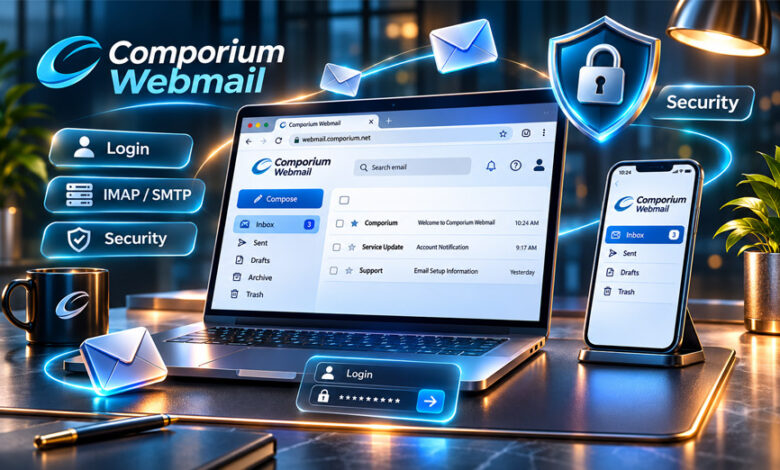

Comporium Webmail is an online email service for people who already have a Comporium.net email account. It lets users read, send, and manage emails through a web browser.
People may search for Comporium Webmail when they need help with login, password recovery, phone setup, email settings, or account problems.
This guide explains how Comporium Webmail works, who can use it, how to log in, and how to fix common problems.
What Is Comporium Webmail?
Comporium Webmail is a way to access a Comporium.net email account through a web browser.
Users can read emails, send messages, reply, forward emails, and manage their inbox without installing a separate email program.
Webmail is different from apps such as Apple Mail or Thunderbird.
With Webmail, you can open your mailbox directly in a browser. You do not need to enter IMAP, POP, or SMTP settings.
An email app works differently. It connects to Comporium’s mail servers using email settings such as IMAP, POP, and SMTP.
This difference can also help when fixing problems.
If Comporium Webmail works but your phone or computer app does not, the mailbox may still be working correctly. The problem may be with the app, saved password, sync settings, or server settings.
About Comporium
Comporium is a communications company based in Rock Hill, South Carolina.
Its history goes back to 1894, when it started as Rock Hill Telephone Company.
Today, Comporium offers internet, communication, security, smart-home, and other technology services.
The company mainly serves communities in North Carolina and South Carolina.
Comporium also continues to provide support for existing Comporium.net email users.
Who Can Use Comporium Webmail?
Comporium Webmail is mainly for people who already have an active Comporium.net email account.
Comporium stopped creating new Comporium.net email accounts on February 1, 2022.
The company also says inactive accounts are not reactivated.
This means new users cannot simply create a Comporium email account like they can with Gmail or Outlook.
Existing users normally need:
- Their full Comporium.net email address
- Their current password
- An active account
- A supported browser or email app
Existing users should also keep their accounts active because Comporium has rules about inactive email accounts.
How to Access Comporium Webmail
The easiest way to use Comporium email is through a web browser.
You do not need to set up mail servers just to use Webmail.
You only need your full Comporium.net email address and password.
Always make sure you are using the real Comporium Webmail page.
Fake login pages can look real and may try to steal your email address and password.
Avoid login links from suspicious emails or text messages.
Comporium Webmail Login Steps
The login process is simple:
- Open the official Comporium Webmail login page.
- Enter your full Comporium.net email address.
- Enter your password.
- Sign in.
- Open your inbox.
Passwords are case-sensitive, so make sure you type them correctly.
If your browser fills in an old password, enter the new password manually.
Can’t Log In to Comporium Webmail?
If you cannot log in, first check your email address and password.
Make sure Caps Lock is not turned on.
Also make sure you are using your full email address.
If you recently changed your password, your browser may still be using the old one.
You can also try:
- Private or incognito mode
- Another browser
- Another device
- Refreshing the page
- Checking your internet connection
If Webmail works on one device but not another, the problem may be with that device.
If it fails everywhere, the problem may be with your password or account.
Do not change IMAP or SMTP settings if the problem is only with browser login.
Comporium Email Password Recovery
Comporium supports recovery information for email accounts.
Depending on your account, recovery may use a phone number or another email address.
It is important to keep this information updated.
An old phone number or unused email address may make recovery harder.
If your recovery details are outdated, contact Comporium support.
Avoid websites that claim they can recover your Comporium password. Use only the official recovery process.
If you change your password, remember to update it on your phone, tablet, and desktop email apps too.
Existing and Inactive Comporium Email Accounts
Comporium stopped creating new Comporium.net email accounts on February 1, 2022.
Existing accounts can still work if they stay active and eligible.
Comporium says email accounts may be archived after 75 days of inactivity.
Some free email-only accounts may also be closed after 75 days without activity.
Inactive accounts are not reactivated.
For this reason, people who still use a Comporium email address should sign in regularly.
Users should also check which important online accounts still use their Comporium email address.
This may include:
- Banking accounts
- Shopping websites
- Social media
- Subscription services
- Password recovery accounts
- Other important websites
If the email account stops working, it may also make it harder to recover those other accounts.
How Comporium Webmail Works
Comporium Webmail gives users direct access to their mailbox through a browser.
Users do not need to set up an email app just to read or send messages.
Email apps work differently because they use IMAP, POP, and SMTP settings.
Webmail is also useful for checking where a problem is coming from.
For example, if new messages appear in Webmail but not on your phone, the mailbox is probably working.
The problem may be with the phone, app, password, or sync settings.
If Webmail also does not work, the problem may be with the account, password, browser, or service.
Main Features of Comporium Webmail
Comporium Webmail includes the main tools needed for everyday email use.
Sending and Receiving Email
Users can send and receive emails through their Comporium account.
They can write new messages, add a subject, attach files, reply, and forward emails.
Sending and receiving can have different problems.
For example, you may receive emails normally but still have trouble sending them.
If only a large email fails, the attachment size may be the problem.
Inbox Management
Users can read messages, search old emails, organize folders, and delete emails they no longer need.
This can be helpful for older accounts that have many messages.
Removing old emails can also help free up mailbox space.
Spam and Junk Mail
Comporium Webmail includes spam tools.
Users can move unwanted emails into the spam or junk folder.
However, a real email can sometimes be marked as spam by mistake.
If you are waiting for a bill, verification email, or password reset message, check the spam folder too.
Safe messages can be moved back to the inbox.
Email Filters
Email filters can help organize incoming messages.
A filter may move certain emails into another folder automatically.
This is useful, but it can also make a message look missing.
If an email is not in the inbox, check other folders, spam, and any active filters.
Current Comporium Email Settings
You do not need server settings if you only use Comporium Webmail in a browser.
These settings are needed when adding the account to a phone, tablet, or desktop email app.
Comporium currently uses mail.comporium.net for incoming email and smtp.comporium.net for outgoing email.
IMAP Settings
| Setting | Details |
|---|---|
| Incoming server | mail.comporium.net |
| Port | 993 |
| Security | SSL |
| Username | Full Comporium.net email address |
| Password | Email password |
IMAP is usually better for people who use email on more than one device.
It keeps messages on the server and helps devices stay synced.
POP Settings
| Setting | Details |
|---|---|
| Incoming server | mail.comporium.net |
| Port | 995 |
| Security | SSL |
| Username | Full Comporium.net email address |
| Password | Email password |
POP also receives email, but it works differently.
It is more focused on downloading messages to a device.
SMTP Settings
| Setting | Details |
|---|---|
| Outgoing server | smtp.comporium.net |
| Port | 465 or 587 |
| Authentication | Required |
| Username | Full Comporium.net email address |
| Password | Email password |
SMTP is used for sending emails.
Always use your full Comporium email address as the username.
IMAP vs POP: Which Is Better?
IMAP and POP both receive email, but IMAP is usually better for most users.
IMAP keeps messages synced across several devices.
For example, if you read or delete an email on your phone, the same change may appear on your computer.
POP mainly downloads messages to a device.
For people who use a phone, tablet, and computer, IMAP is usually the easier option.
POP may still work well for people who want emails stored more locally.
How to Set Up Comporium Email on a Computer
You can add your Comporium email account to a supported desktop email program.
Start by adding a new email account.
Enter your full Comporium.net email address and password.
Some apps may find the settings automatically.
If that does not work, use manual setup.
For IMAP, use:
- Server:
mail.comporium.net - Port: 993
- Security: SSL
For outgoing email, use:
- Server:
smtp.comporium.net - Authentication: On
- Port: 465 or 587
After setup, send a test email and also check whether you can receive one.
Using Comporium Email With Outlook and Other Desktop Apps
Comporium email can work with compatible apps such as Apple Mail, Thunderbird, and some Outlook versions.
If a desktop app stops working, check Webmail first.
If Webmail works, the problem is probably with the app, saved password, sync, or settings.
Comporium guidance also reports that its mail server is not currently supported in Microsoft’s New Outlook Mail app.
This may change in the future, so users should check the latest Comporium information.
How to Set Up Comporium Email on iPhone and Android
Comporium email can also be added to supported mobile email apps.
The setup screens may look different on iPhone, iPad, and Android devices.
You normally need:
- Full Comporium.net email address
- Password
- Incoming server
- Outgoing server
- Port numbers
- SSL settings
For incoming IMAP, use mail.comporium.net with port 993.
For outgoing email, use smtp.comporium.net.
Comporium lists port 587 for iPhone and port 465 for Android in its setup information.
After setup, test both sending and receiving.
Comporium Webmail Storage and Sending Limits
Comporium has some limits for email accounts.
The mailbox limit is 5 GB.
The maximum attachment size is 20 MB.
Users can send one email to up to 200 recipients.
Comporium also lists a sending limit of 200 messages in 30 minutes.
These limits can affect email use.
A full mailbox may stop new emails from arriving.
Large attachments or too many messages can also cause sending problems.
Why Comporium Email Is Not Sending
If emails are not sending, check the outgoing server first.
The server should be smtp.comporium.net.
Also check:
- SMTP authentication
- Full email address
- Current password
- Port 465 or 587
- Attachment size
- Number of recipients
If you recently changed your password, the email app may still be using the old one.
Try sending a simple email with no attachment to one person.
If it works, the problem may be with the original message or attachment.
Why Comporium Email Is Not Receiving Messages
If emails are not arriving, first check Webmail.
If the missing messages are visible there, the problem is probably with your phone or email app.
For IMAP, check:
- Server:
mail.comporium.net - Port: 993
- SSL: On
- Full email address
- Current password
For POP, use port 995 with SSL.
Also check the spam folder and other folders.
If your mailbox is close to the 5 GB limit, delete old or large messages.
How to Fix Comporium Webmail Not Working
If the Webmail page is not working, start with simple checks.
Check your internet connection first.
Then try:
- Refreshing the page
- Using private or incognito mode
- Trying another browser
- Updating the browser
- Checking browser extensions
- Clearing site data
- Trying another device
Do not change IMAP or SMTP settings if the problem is only with Webmail in the browser.
Comporium Webmail Security
Email security is important because your inbox may be connected to many online accounts.
Use a strong and unique password.
Do not use the same password on many websites.
Keep your phone, computer, browser, and email apps updated.
Always sign out when using a shared computer.
If you see emails in your Sent folder that you did not send, change your password and contact Comporium if needed.
Spam and Phishing Safety
Spam and phishing are different.
Spam is usually unwanted email.
Phishing tries to steal passwords, financial details, or other private information.
Phishing emails may say your account will be closed or that you must sign in quickly.
They may include fake login links.
Be careful with:
- Unexpected password requests
- Unknown attachments
- Strange sender addresses
- Urgent account warnings
- Requests for personal information
If an email says there is a problem with your account, open Comporium Webmail through a trusted link instead of clicking the email link.
Privacy and Account Information
Your Comporium email account may contain private messages, bills, receipts, and password reset emails.
Do not share screenshots that show private account details.
Keep passwords and recovery information private.
The available information does not fully explain Comporium’s internal data storage or retention rules.
Users should check official Comporium privacy information for exact details.
Comporium Webmail vs an Email App
Comporium Webmail and email apps can both access the same account.
| Feature | Comporium Webmail | Email App |
|---|---|---|
| Browser access | Yes | Not needed |
| Manual setup | No | Often needed |
| Notifications | Limited by browser/device | Usually better |
| Multiple accounts | Less convenient | Often easier |
| Troubleshooting | Very useful | Can have app problems |
| Server settings | Not needed | Usually needed |
Webmail is simple because it works in a browser.
An email app can be better for everyday use because it may offer notifications and support several accounts.
Many users can use both.
Benefits of Comporium Webmail
Comporium Webmail has several useful benefits.
These include:
- Easy browser access
- No app needed for basic use
- Mobile and desktop support
- IMAP and POP support
- SMTP support
- Spam tools
- Password recovery support
- Easy troubleshooting
- Simple inbox management
It can still be useful for people who have used a Comporium.net email address for many years.
Drawbacks and Limitations
Comporium Webmail also has some limits.
The main ones are:
- No new Comporium.net accounts
- Inactive accounts are not reactivated
- 75-day inactivity concern
- 5 GB mailbox limit
- 20 MB attachment limit
- No clearly confirmed dedicated Comporium email app
- Some setup steps can be technical
- Software compatibility may change
- New Outlook currently has a reported compatibility issue
These limits are important for people who still depend on an older Comporium email address.
When to Contact Comporium Support
Contact Comporium support if:
- Your correct password keeps failing
- Password recovery does not work
- Recovery details need updating
- Your account suddenly becomes unavailable
- You suspect someone accessed your account
- Email still does not send or receive
- You are unsure about your account status
Before contacting support, note the exact error message.
Also check whether the problem happens in Webmail, on your phone, computer, or everywhere.
This can help support understand the problem faster.
Tips for Comporium Webmail Users
- Sign in regularly.
- Keep recovery details updated.
- Use IMAP on several devices.
- Always use your full email address as the username.
- Use current Comporium server settings.
- Check Webmail before changing app settings.
- Change one setting at a time.
- Check the spam folder for missing emails.
- Back up important messages when needed.
- Review websites that still use your Comporium email for recovery.
- Keep your browser and devices updated.
- Avoid suspicious login links.
Bottom Line
Comporium Webmail is a browser-based email service for existing Comporium.net users.
It allows users to read, send, and manage email online.
Existing accounts can also be connected to supported phone and desktop email apps using IMAP, POP, and SMTP settings.
Comporium stopped issuing new email accounts on February 1, 2022. Inactive accounts are also not reactivated.
Existing users should keep their accounts active, protect their passwords, and keep recovery details updated.
Frequently Asked Questions
What is Comporium Webmail?
Comporium Webmail helps existing Comporium.net users read, send, and manage emails online.
Can I create a new Comporium.net email account?
No. Comporium stopped creating new Comporium.net email accounts on February 1, 2022.
How do I log in to Comporium Webmail?
Open the official Webmail page and enter your full email address and password.
What happens if my Comporium email becomes inactive?
Inactive accounts may be archived after 75 days. Comporium says these accounts are not reactivated.
What are the Comporium IMAP settings?
Use mail.comporium.net, port 993, and SSL. Enter your full email address as the username.
What is the Comporium SMTP server?
Use smtp.comporium.net for sending emails. Port 465 or 587 may be used depending on the email app.
Can I use Comporium email on my phone?
Yes. Existing accounts can be added to supported iPhone and Android email apps.
Why is my Comporium email not working?
Check your internet, password, browser, spam folder, and email settings. Contact Comporium support if it still does not work.