
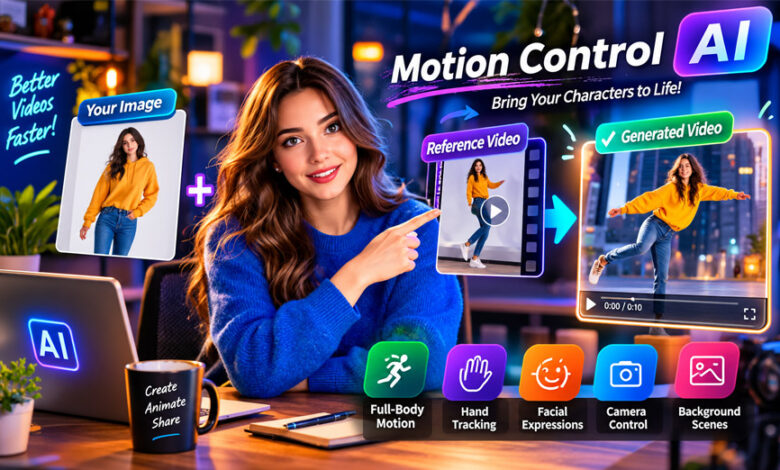

Motion Control AI is a technology that can make a still image move by using movement from a reference video. Instead of asking AI to create the movement itself, you show it the exact type of movement you want.
It can be useful for AI videos, character animation, social media, marketing, and storyboarding. Kling AI Motion Control is one tool that offers this technology.
This guide explains what Motion Control AI is, how it works, its main features, uses, pricing, limits, and helpful tips.
What Is Motion Control AI?
Motion Control AI is a type of AI technology that takes movement from a video and applies it to another image or character. This is called motion transfer.
You normally need two things. The first is a still image of the person or character you want to animate. The second is a reference video showing the movement you want.
The image tells the AI what the character should look like. The video shows the AI how the character should move.
This is different from normal image-to-video tools. With a normal tool, you might write, “make this person dance.” The AI then decides how the person should dance.
With Motion Control AI, you can upload a real dance video. The AI studies the dance and tries to give the same movements to your character.
This gives you more control. However, the AI may not copy every movement perfectly. Results depend on the image, reference video, AI model, and settings.
How Does Motion Control AI Work?
Motion Control AI studies the reference video to understand how the person moves.
It looks at different frames in the video. It may study body position, posture, hand gestures, facial expressions, movement speed, timing, and direction.
The AI then uses this information to make the character in your still image move.
For example, you may have a picture of a character and a video of someone walking. The AI studies how the person’s arms, legs, and body move. It then tries to make your character walk in a similar way.
According to the information we collected, Kling Motion Control may also study weight changes, hand movements, facial expressions, and camera position.
The AI also tries to make movements look natural. When a person jumps or turns, their balance and body position change. The system tries to copy these details.
However, difficult movements can still cause problems. Fast action, hidden body parts, or poor-quality videos may lead to mistakes.
Kling AI Motion Control
Kling AI Motion Control is one of the tools that uses this type of motion transfer.
The process is simple. You provide a still image and a reference video. Kling studies the movement in the video and tries to apply it to your character.
The information we collected says Kling can work with walking, dancing, gestures, martial arts, and other body movements.
It can also work with hand gestures and facial expressions. The goal is to keep the character looking the same while it moves.
Some other websites may provide access to Kling technology. For example, the supplied source mentions PixExact as one way to use Kling Motion Control in a browser.
PixExact and Kling are not the same service. Features may also be different depending on the Kling version or platform you use.
Main Features of Motion Control AI
Motion Control AI includes different features that help users control character movement.
Full-Body Motion Transfer
Full-body motion transfer lets AI copy movement across the whole body.
It can be useful for walking, dancing, sports, action scenes, and other movements.
The AI studies how the arms, legs, and body move together. It also tries to follow the speed and timing of the original movement.
Hand and Gesture Tracking
Motion Control AI may also follow hand and finger movements.
This can be useful for pointing, presentations, product videos, and character animation.
However, hands are still difficult for AI. Fast finger movements or hidden hands may look wrong in the final video.
Motion Control AI should also not be treated as a perfect sign-language tool. Sign language needs very accurate hand shapes, facial expressions, and body movements.
Facial Expressions
The AI may also copy facial expressions from the reference video.
For example, if the person smiles or turns their head, the AI may try to give the target character a similar expression.
Keeping the same face during movement can be difficult. Fast head turns or objects covering the face may cause errors.
Character Identity
Character identity means keeping the character looking the same during the whole video.
The AI tries to keep the same face, hair, clothes, and body shape while the character moves.
Older or less stable AI models may change some details during difficult movements.
The supplied information says newer Kling versions have improved character consistency, especially when a person turns or part of the face becomes hidden.
Motion Strength and Control
Some Motion Control AI tools let you control how closely the character follows the reference video.
A stronger setting may make the movement closer to the original video. A lower setting may give the AI more freedom.
The supplied information also mentions a motion brush. This may allow users to control movement in certain parts of an image.
Available controls can depend on the version or platform.
Background and Scene Control
Users may also use text prompts to change the scene around the character.
For example, the reference video may show someone dancing in a normal room. You may be able to place the animated character in a park, club, studio, or another setting.
Prompts can describe the background, lighting, mood, and general look of the scene.
Camera Controls
Some Motion Control AI tools also provide camera controls.
The supplied information mentions options such as zoom, pan, static camera, camera direction, and character position.
It can also help if the target image and reference video use similar camera angles. A front-facing image usually works better with a front-facing reference video.
How to Use Motion Control AI
First, choose a clear image of the character you want to animate.
Next, find a reference video showing the movement you want. The person should be easy to see.
Upload the image and video to the Motion Control AI tool. The AI will study the video and use its movement to animate the image.
If the tool provides extra settings, you may be able to change motion strength, camera movement, and character direction.
You may also add a text prompt to describe the background, lighting, or scene.
After the video is generated, watch it carefully. Check the face, hands, feet, clothes, body shape, and background.
If something looks wrong, change one setting at a time and try again.
Supported Images, Videos, and Output
According to the supplied information, Kling Motion Control supports JPG and PNG images.
It also mentions MP4 and MOV reference videos.
The source says reference videos may be between 3 and 30 seconds long. The exact limit may depend on the model, plan, or platform.
The information also mentions 720p and 1080p video output and MP4 downloads.
These limits can change. It is best to check the current platform before starting a project.
Good-quality files are also important. A blurry or dark video can make it harder for AI to understand the movement.
Standard vs Pro Video Modes
The supplied information describes two options called Standard and Pro modes.
Standard mode may be useful for quick tests, simple videos, and social media content. It may also use fewer credits.
Pro mode is described as offering better details and higher video quality. It may be better for advertisements, client projects, or professional videos.
Higher-quality videos may take longer to generate and may use more credits.
The exact options and costs can change depending on the platform.
Audio and Lip Sync
The supplied source says users may be able to keep audio from the reference video.
This can be useful when the movement follows music or another sound.
You can also remove the original sound and add your own music, voice, or effects later.
The motion-control system described in the source does not automatically create lip sync. Mouth movements from the reference video may be transferred, but matching new speech may need a separate lip-sync tool.
Kling 2.6 vs Kling 3.0
The supplied information describes Kling 2.6 as an earlier version of the motion-control system.
It could transfer movement from a reference video to a still image. However, the source reports some problems with difficult movements.
For example, faces could sometimes change during large head turns. Hands moving in front of the face could also cause errors. Fast movement could make the background less stable.
Kling 3.0 is described as improving these areas.
According to the source, Kling 3.0 offers better face consistency, better handling when objects cover the face, and more stable video details.
It also reports improvements in hair, clothes, backgrounds, rotations, and 3D movement.
However, these improvements do not mean every video will be perfect. Results still depend on the image, video, movement, and settings.
Common Uses of Motion Control AI
Motion Control AI can be useful when you want a character to follow a specific movement.
Social Media Videos
Creators can use it for TikTok, Instagram Reels, and YouTube Shorts.
It can help create dance videos, reactions, gestures, and other short character videos.
The same movement can also be used with different characters.
Marketing and Brand Content
Businesses may use Motion Control AI for virtual presenters, brand characters, product videos, and promotional content.
One recorded movement can be used with different AI characters. This may help businesses create different versions of the same campaign.
However, the final video should always be checked for AI mistakes before it is published.
Animation and Storyboarding
Animators can use motion transfer to test movements before creating a final scene.
They can see how different characters look while performing the same action.
This can help with timing, camera position, body movement, and planning.
Motion Control AI does not replace traditional animation in every situation. Some projects may still need manual animation or video editing.
Training and Tutorial Content
Motion Control AI can also be used for simple training videos and tutorials.
A real person’s movement can be used to control a virtual presenter.
However, important instructions should be checked carefully. AI may change small hand movements, body positions, or object interactions.
Benefits of Motion Control AI
The main benefit is better control over AI movement.
Instead of explaining every movement with text, you can show the AI what you want through a reference video.
Other benefits include:
- More predictable movement
- Better control over timing and gestures
- Easy testing of different characters
- Useful for storyboards and animation planning
- Helpful for social media videos
- Ability to reuse the same movement
- Less need for complicated movement prompts
However, results are not always perfect. The quality depends on the AI model and the files you provide.
Limitations and Common Problems
Motion Control AI still has some problems.
Hands and fingers may look strange. Fast movements can cause body parts to change shape. Faces may also change when the character turns or becomes partly hidden.
Feet can sometimes slide across the ground instead of moving naturally.
Body size and shape may also change during difficult movements.
Another problem is occlusion. This happens when one object or body part covers another. For example, a hand may move in front of a person’s face. AI must understand which object is in front and what should stay behind it.
Poor reference videos can make these problems worse. Dark videos, camera shake, blurry footage, hidden body parts, or several people in one scene can make movement harder to track.
Motion Control AI Pricing and Free Access
The supplied information says Kling Motion Control offers free and paid access.
However, we do not have enough reliable information to give an exact current price.
Free access may have limits on video quality, credits, processing speed, or video length.
Paid plans may offer higher video quality, faster processing, professional features, and videos without watermarks.
The source also mentions options for larger commercial projects.
Prices and credit costs can change. Users should check the latest pricing before paying for a plan.
The supplied information also mentions a free trial. Trial rules can change, so users should check the current offer directly.
API and Integrations
The supplied source says Kling Motion Control offers API access.
An API allows developers to connect AI video tools with their own websites, apps, or other systems.
This may be useful for businesses that want to create many videos automatically.
The source says the API includes information about authentication, requests, generation settings, and responses.
It also says direct Higgsfield AI integration is not a standard feature. Users may instead export a video from one service and upload it to another.
API features, prices, and limits can change, so developers should check the latest documentation.
Safety, Privacy, and Content Rights
Motion Control AI can use photos and videos of real people. Users should therefore think about privacy and permission.
You should have permission to use the photos and videos you upload.
Reference videos may also contain copyrighted music, movie clips, characters, logos, or other protected content. Making an AI video does not automatically give you the right to use that material.
Motion Control AI can also make a person appear to do something they never really did. Users should avoid creating fake, misleading, or harmful videos.
The supplied information does not clearly explain how long uploaded files are stored or whether they may be used to improve AI systems.
Check the platform’s privacy policy before uploading private or sensitive images and videos.
You should also check commercial-use rules before using AI videos for ads, clients, products, or paid campaigns.
Tips for Better Motion Control AI Results
A good reference video can improve your results.
Try these simple tips:
- Use a clear and well-lit video.
- Keep the main person easy to see.
- Avoid objects covering the body.
- Use a simple background when possible.
- Keep one main person in the video.
- Use a clear target image.
- Try to match the camera angles.
- Start with simple movements.
- Test short clips first.
- Keep hands visible when hand movement matters.
- Use simple prompts that match the action.
- Change one setting at a time.
- Save settings that work well.
The supplied source suggests testing different motion-strength levels instead of always using the highest setting.
Troubleshooting Motion Control AI
If your video looks wrong, first find the main problem. Then change the source file or settings that may be causing it.
Character Face Keeps Changing
Use a clear image where the face is easy to see.
Large head turns can make it harder for AI to keep the same face. Try a simpler movement or shorter video.
Hands Look Distorted
Use reference videos where the hands are clearly visible.
Fast movements, blurry fingers, or hidden hands can cause problems. Try a simpler action if needed.
Feet Slide Across the Ground
Use a video where the person’s steps and feet are easy to see.
If the tool supports text prompts, you can also describe natural steps and body weight movement.
Body Shape Changes During Movement
Try to use an image with a similar camera angle to the reference video.
If the movement is very difficult, use a simpler action or divide it into shorter clips.
Motion Does Not Match the Reference
Check your reference video.
The person should be clearly visible. Avoid dark videos, heavy camera movement, or objects covering the person.
If motion-strength settings are available, test different levels.
Video Quality Looks Poor
Use clearer and higher-quality images and videos.
Avoid blurry, dark, or heavily compressed files.
If the platform has a higher-quality mode, test it after you find settings that work.
Bottom Line
Motion Control AI uses movement from a reference video to animate an image or character. It gives users more control over body movements, gestures, facial expressions, and timing.
Kling AI Motion Control is the main tool covered in this guide. It can be useful for social media, marketing, animation, storyboarding, and virtual presenters.
However, AI videos can still have problems such as strange hands, changing faces, sliding feet, and body errors.
Using clear source files and testing different settings can help improve the results. Users should also check current prices, privacy rules, copyright terms, and commercial-use rules before using the technology.
Frequently Asked Questions
What is Motion Control AI?
Motion Control AI takes movement from a video and uses it to make a still image or character move.
How does Motion Control AI work?
It studies movement in a reference video and applies the same type of movement to an image.
What is Kling AI Motion Control?
Kling AI Motion Control is an AI tool that uses a reference video to make an image or character move.
Is Motion Control AI free?
Some tools offer free access with limits. Paid plans may give better quality and more features.
How long can a Motion Control AI video be?
The supplied information mentions reference videos from 3 to 30 seconds. Limits may change by tool or plan.
What types of videos work best for motion transfer?
Clear and well-lit videos work best. The person’s body and movements should be easy to see.
Can Motion Control AI copy dance movements?
Yes. It can take dance movements from a reference video and apply them to another character.
Is Motion Control AI safe to use?
Yes, but use photos and videos you have permission to use. You should also follow privacy and copyright rules.
TechTrendery.com Complete Guide: Content, Authors, Safety, and Alternatives
BlessingTide.com Complete Guide: Content, Features, Safety, and Privacy





One Comment