What Is content://cz.mobilesoft.appblock.fileprovider/cache/blank.html? Is It Safe?

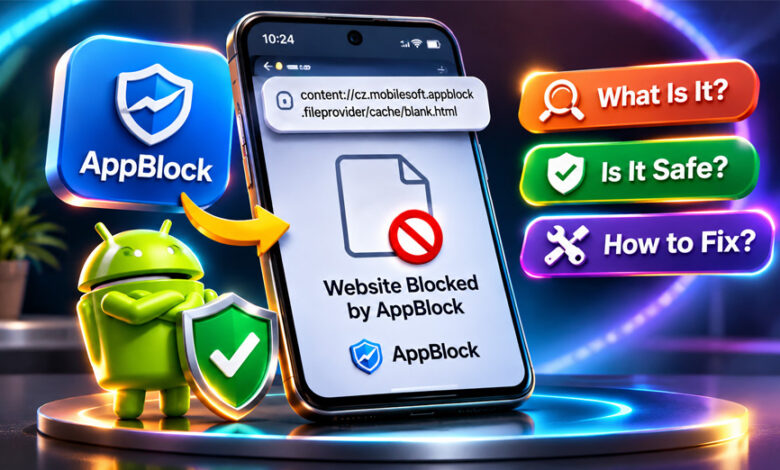
If you see content://cz.mobilesoft.appblock.fileprovider/cache/blank.html on your Android phone, it may look strange. This address is connected with AppBlock and Android’s content URI system.
It may appear when AppBlock blocks a website. It may also appear in your browser history after a website was blocked.
Seeing this address does not mean your phone has a virus. This guide explains what it is, why it appears, whether it is safe, and what you can do about it.
What Is content://cz.mobilesoft.appblock.fileprovider/cache/blank.html?
content://cz.mobilesoft.appblock.fileprovider/cache/blank.html is an Android content URI linked with AppBlock.
It is not a normal website address. Websites usually start with http:// or https://. Android uses content:// addresses to give apps controlled access to files and other data.
The cz.mobilesoft.appblock part matches the Android package name used by AppBlock.
The blank.html part refers to an HTML resource. When AppBlock blocks a website, this blank resource may appear instead of the website.
However, AppBlock does not clearly explain this exact blank.html file in its official information. So, it is reasonable to connect it with website blocking, but its exact use may differ between AppBlock versions.
What Each Part of the URI Means
The address looks complicated, but it becomes easier when we separate it into parts.
content:// means it is an Android content URI. It is different from https://, which is normally used for websites.
cz.mobilesoft.appblock is connected with AppBlock’s Android package name.
The .fileprovider part is linked with Android’s FileProvider system. It helps apps give controlled access to certain files.
The /cache/ part points to a resource path. However, this does not always mean there is a physical folder with exactly this name. Android apps can use different names for their internal paths.
Finally, blank.html is the name of the HTML resource.
In simple words, this address helps Android find an AppBlock-related resource.
What Is AppBlock?
AppBlock is an app developed by MobileSoft s.r.o. It helps people control screen time and reduce distractions.
Users can block selected apps and websites. This can be useful while studying, working, sleeping, or taking a break from social media.
AppBlock has features such as website blocking, app blocking, schedules, profiles, Quick Block, allowlists, usage reports, and Strict Mode.
Schedules can automatically start restrictions at certain times. For example, you can block social media websites during work or study hours.
Strict Mode makes restrictions harder to turn off. It can help users stay with the limits they have already set.
Why Does the AppBlock blank.html Page Appear?
The blank page can appear for several reasons.
One common reason is an active AppBlock rule. The website you are trying to visit may be on your blocked list.
A website may also match a blocked keyword or URL. In some cases, the browser itself may be blocked.
For example, a website may be allowed, but the browser used to open it may still be restricted.
A schedule can also cause the page to appear at certain times. A website may work normally at one time but become blocked when a work or study schedule starts.
If you blocked the website yourself, the blank page may simply mean AppBlock is doing what you asked it to do.
Why Does blank.html Appear in Browser History?
Your browser may save the AppBlock blank page in its history.
If you open that old history entry later, the browser may try to load the same content URI again.
This does not always mean the website is currently blocked.
To check, open a new browser tab and type the original website address. If the website opens normally, the old blank.html address was probably saved from an earlier block.
You can delete the old history entry if you want. However, deleting it will not change your AppBlock settings.
Is content://cz.mobilesoft.appblock.fileprovider/cache/blank.html Safe?
Seeing this address alone does not mean your Android phone has been hacked or infected.
The address follows Android’s normal content:// format. Its package name is also connected with AppBlock.
If you installed AppBlock and the address appears when one of your blocking rules starts, there is usually a normal reason for it.
However, the address cannot prove that your whole phone is safe. It only tells you about this particular Android resource.
If you do not remember installing AppBlock, check the apps installed on your phone. On a school, work, or family-managed device, someone responsible for the device may have set it up.
Is blank.html a Virus or Malware?
The AppBlock blank.html address alone is not evidence of a virus or malware.
It uses Android’s normal content URI format and is connected with AppBlock.
However, you should check your phone if you also notice other unusual problems. These could include unknown apps, strange redirects, repeated crashes, or unexpected changes.
Those problems do not mean blank.html is a virus. They may simply point to a different issue that needs checking.
Does the AppBlock URI Track Your Browsing?
The URI itself does not prove that AppBlock or another person is spying on you.
It is simply an address for an Android resource.
AppBlock may need Android permissions to detect websites and apps that should be blocked. Some features may also use information about app or website usage.
Website blocking and usage tracking are not exactly the same thing.
If privacy is important to you, check AppBlock’s permissions, usage statistics settings, and current privacy information.
Deleting blank.html will not change how AppBlock handles other information.
How Android FileProvider Works
Android normally keeps one app’s files protected from other apps.
Sometimes an app needs to share a file or resource with another app. Android’s FileProvider system helps it do this in a controlled way.
Instead of showing the real file location, the app can use a content:// address. Android permissions can control which apps are allowed to access it.
Access may also be temporary.
This is why copying the AppBlock URI into another browser or device may not work. The other app may not have permission to open the resource.
If the URI does not open, it does not automatically mean your internet connection has a problem.
content://blank.html vs about
The AppBlock URI and about:blank are different.
about:blank is a blank page created by the browser itself.
content://cz.mobilesoft.appblock.fileprovider/cache/blank.html is an Android content URI connected with an AppBlock resource.
Both can show an empty page, but they do not work in the same way.
This is important when looking for a solution. A fix for about:blank may not fix an AppBlock restriction.
How to Fix an Unexpected AppBlock Blank Page
If the AppBlock blank page appears when you try to open a website, first check your AppBlock settings.
Do not immediately delete files or reset the app. An active blocking rule may be causing the problem.
Check AppBlock Rules and Schedules
Open AppBlock and look at your active rules.
Check your schedules, profiles, blocked websites, keywords, and browser restrictions.
If the website should not be blocked, pause or change the rule that is causing the problem.
Change one setting at a time. Then try the website again. This makes it easier to find the rule causing the issue.
Open the Original Website Again
Close the blank page and open a new browser tab.
Type the original website address instead of refreshing the content:// URI.
Refreshing the AppBlock URI may simply try to open the blank resource again.
You can also compare opening the website directly with opening it from Google Search or another app.
Restart the Browser or App
Close your browser and open it again.
If the problem continues, restart your Android phone and try the website again.
Remember that restarting your phone will not remove an active AppBlock rule. An intentionally blocked website should remain blocked.
Check App and Browser Updates
Check for updates for AppBlock and your browser.
Old software can sometimes cause problems. Install available updates through official app stores.
However, the blank.html address alone does not mean an old app version is causing the problem.
Check AppBlock Permissions
Some AppBlock features need Android permissions.
Check whether AppBlock says a required permission is missing. You can also review its permissions through your Android settings.
Only allow permissions needed for the features you use.
Do not turn off every permission just to remove the blank page. This may stop AppBlock from working correctly without fixing the real problem.
Clear the Cache If Needed
If the problem continues, you can try clearing AppBlock’s cache.
On many Android phones, go to Settings > Apps > AppBlock > Storage or Storage & cache and select Clear cache.
The menu may look different depending on your phone.
Clearing the cache removes temporary files. It does not normally remove your blocking rules or schedules.
Clear Cache vs Clear Data vs Changing AppBlock Rules
These options do different things.
Change an AppBlock rule: Use this when a website is being blocked by mistake.
Clear cache: This removes temporary app files. It does not normally change your blocking rules.
Clear data or storage: This is a bigger change. It can remove locally stored app information and may require you to set up AppBlock again.
Deleting blank.html from your browser history only removes that history entry. It does not change AppBlock’s blocking settings.
If a website is blocked by mistake, check the blocking rule before clearing app data.
What Is AppBlock Strict Mode?
Strict Mode makes AppBlock restrictions harder to change or turn off.
It can be useful when users do not want to easily bypass the limits they have set for themselves.
Depending on your settings, Strict Mode may stop you from changing certain rules or uninstalling AppBlock.
Some setups may use a PIN, timer, cooldown, charger condition, or another approval method.
If you cannot pause a restriction or change AppBlock settings, check whether Strict Mode is active.
This does not mean the app is malicious. It may simply be following the protection settings already set on the device.
Can You Delete blank.html to Unblock a Website?
Deleting blank.html is not a good way to unblock a website.
The blank resource and the blocking rule are different things.
Even if temporary files are removed, AppBlock can block the website again if the same rule is still active.
Instead, open AppBlock and check the schedule, profile, blocked website, keyword, or browser rule.
Android and AppBlock normally manage temporary files automatically.
Should You Uninstall AppBlock?
You do not need to uninstall AppBlock just because the blank.html address appears.
If only one website is being blocked by mistake, changing the relevant rule is usually enough.
If you no longer want AppBlock, you can uninstall it using the normal Android controls.
Strict Mode or other protections may need to be turned off first. In some setups, device administrator access may also need to be removed.
Do not try to uninstall AppBlock by manually deleting its files.
What If AppBlock Is Not Blocking the Website?
If AppBlock is not blocking the website, another problem may be stopping it from opening.
Type the original website address into a new browser tab.
If other websites also do not work, check your internet connection. You can also restart your browser or phone.
Browser, network, or DNS problems can sometimes stop websites from loading.
However, the AppBlock URI alone cannot tell you which problem is responsible.
Always test the original website instead of repeatedly opening the content:// address.
Device and Browser Differences
Android settings can look different on different phones.
Samsung, Google Pixel, Xiaomi, Motorola, OnePlus, and other devices may use different names for storage, apps, and permission settings.
Browsers can also behave differently. Chrome may handle something differently from another browser or an in-app browser.
AppBlock itself can also change after updates.
If you use a Chromebook, first check whether you are using the Android AppBlock app or a browser extension. Android instructions may not work for a browser extension.
The content URI is not a normal webpage, so copying it to another device may not work.
When to Contact AppBlock Support
Contact AppBlock support if the problem continues and you cannot find the cause.
Before contacting support, collect some basic information.
Note your phone model, Android version, AppBlock version, and browser version. Also check which AppBlock rule or schedule is active.
Explain exactly what happens before the blank page appears.
Tell support whether the website works when you type its address directly or whether the problem happens only through Google Search or another app.
You can also send a screenshot if needed. Hide private URLs, account details, and other personal information before sharing it.
Bottom Line
content://cz.mobilesoft.appblock.fileprovider/cache/blank.html is an Android content URI connected with AppBlock. It is not a normal website address.
It may appear as a blank resource when AppBlock restricts a website. However, the exact use of this file is not clearly explained in AppBlock’s official information.
Seeing the address alone does not mean your phone has malware or has been hacked.
If it appears unexpectedly, check your AppBlock rules and schedules first. Then open the original website in a new browser tab.
Only clear the cache, reset the app, or uninstall AppBlock when it is really needed.
Frequently Asked Questions
What is content://cz.mobilesoft.appblock.fileprovider/cache/blank.html?
It is an Android content URI linked with AppBlock. It may appear when AppBlock blocks a website.
Is content://cz.mobilesoft.appblock.fileprovider/cache/blank.html a virus?
No evidence shows that the URI itself is a virus. It is linked with an Android resource used by AppBlock.
Why does AppBlock show a blank page?
A blank page may appear when an AppBlock rule blocks a website or browser. Check your active rules and schedules.
Why is blank.html in my browser history?
Your browser may have saved the AppBlock blank page in its history after a website was blocked.
Can I delete blank.html?
You normally do not need to delete it. Change the AppBlock rule if a website is being blocked by mistake.
Why can’t I turn off AppBlock?
Strict Mode or another protection may stop you from changing AppBlock settings. Check whether one of these protections is active.
Is AppBlock tracking my browsing?
The URI itself does not prove tracking. Check AppBlock’s permissions, usage settings, and privacy information for details.
How do I stop the AppBlock blank page?
Check your AppBlock rules and schedules. Remove an unwanted restriction, then open the original website in a new browser tab.